Connected Fleet is the IO Systems fleet management platform. It ingests vehicle and device telemetry, normalises it, and puts the result in front of the people who act on it. This guide walks through the platform feature by feature.
Marked sections require an attached telematics device, supplied by IO Systems on order
01 —ACCESS
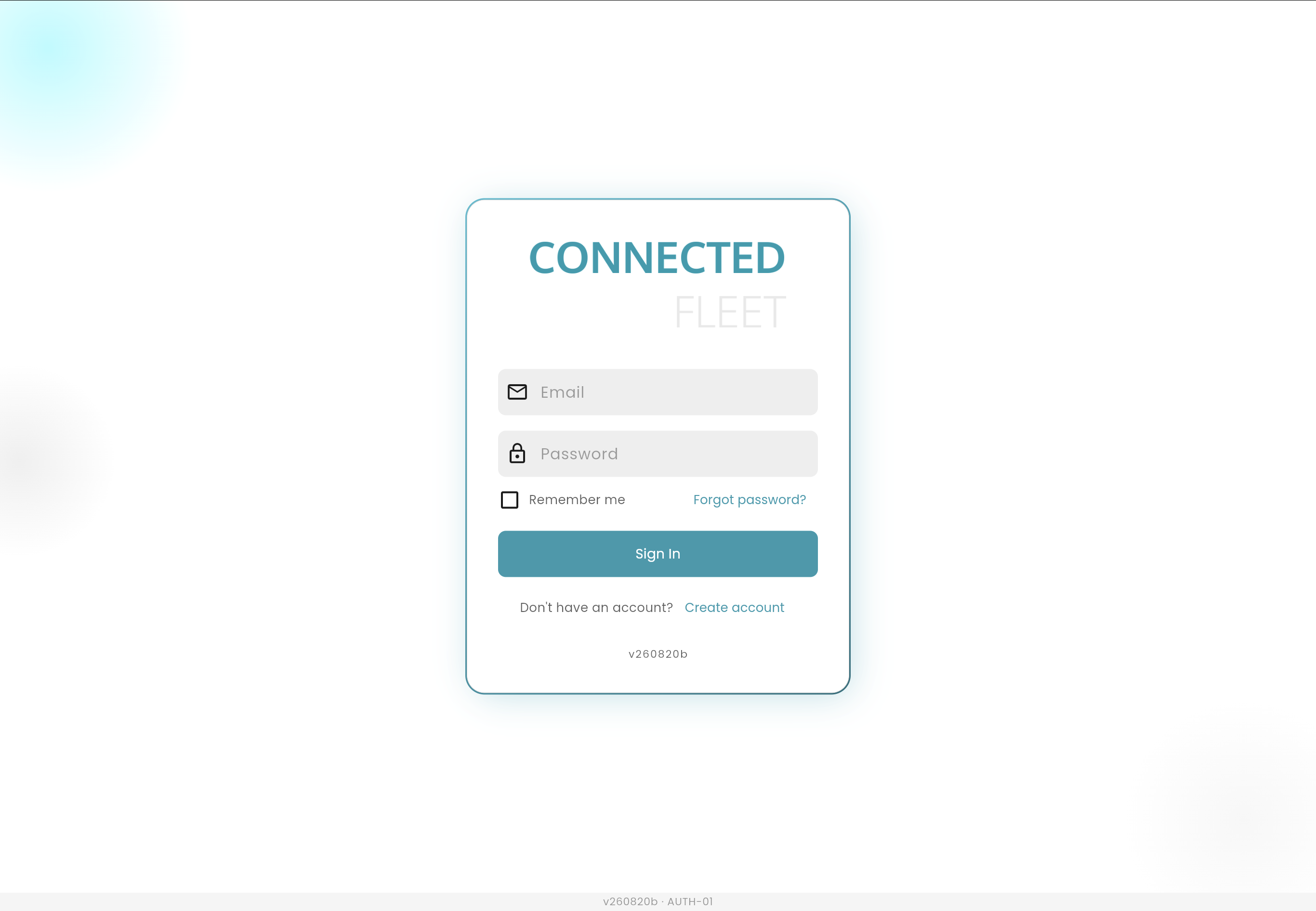
Web sign-in
Connected Fleet runs in the browser. Nothing to install, nothing to maintain on the desktop. Your team signs in with a work email address and lands directly in your organisation.
Browser-based access from any desktop, no client software or VPN
Email and password sign-in with self-service password reset
Remember-me sessions for shift-based control room operators
Build version stamped on every screen, so support requests carry their own context
AUTH-01 · Sign-in
02 —ORGANISATION
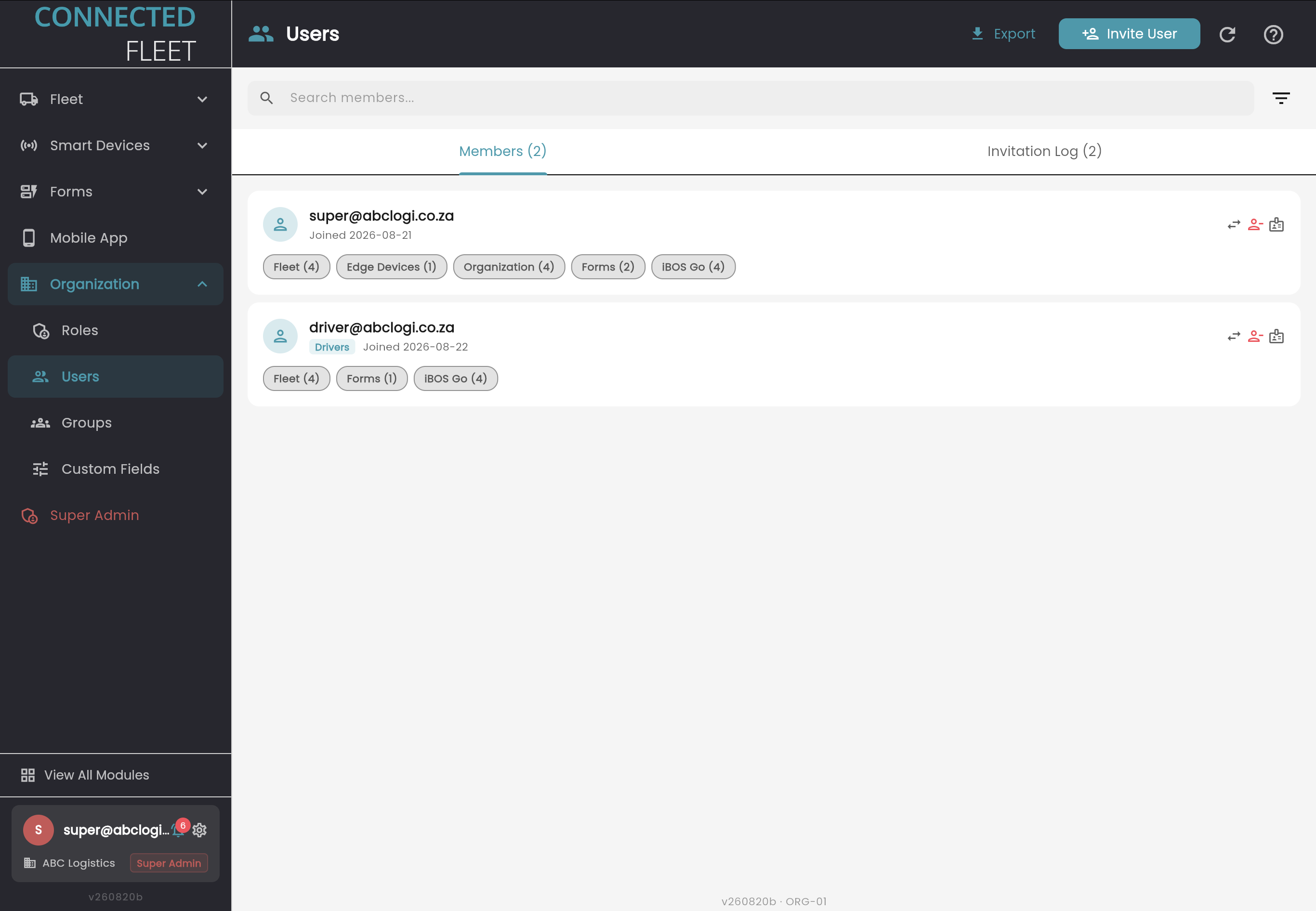
User management
Onboarding a new user takes one invitation. Send it to their email address, put them in a group, and their access to every module follows from that group. No per-user permission wiring.
Invite by email, with a full invitation log of who was invited and when
Per-module access visible on every member: Fleet, Edge Devices, Organization, Forms, Mobile App
Group membership drives permissions, so a new driver inherits the driver profile
Search, filter and export the member list for audit or HR reconciliation
ORG-01 · Organisation → Users
03 —ACCESS CONTROL
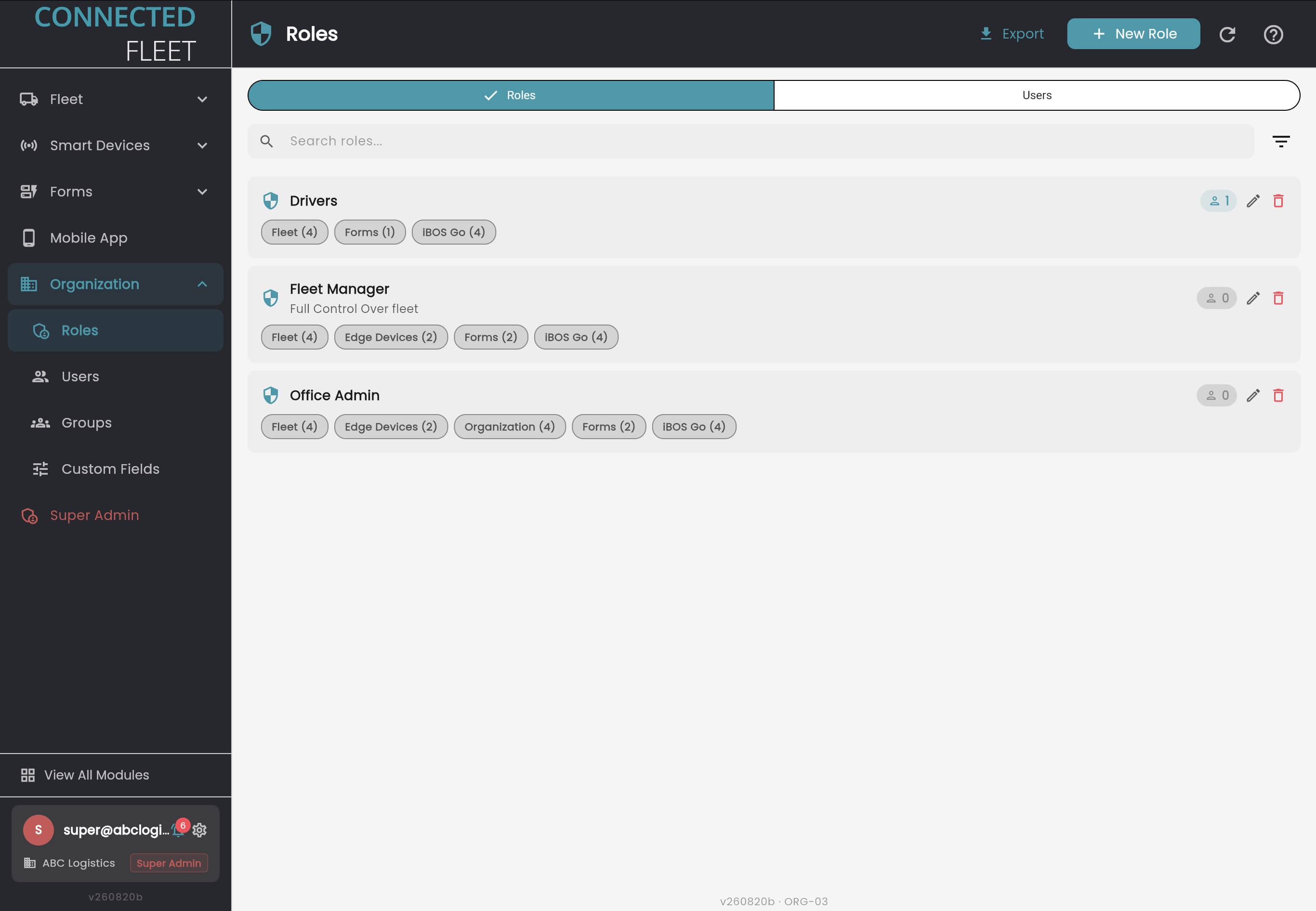
Custom roles
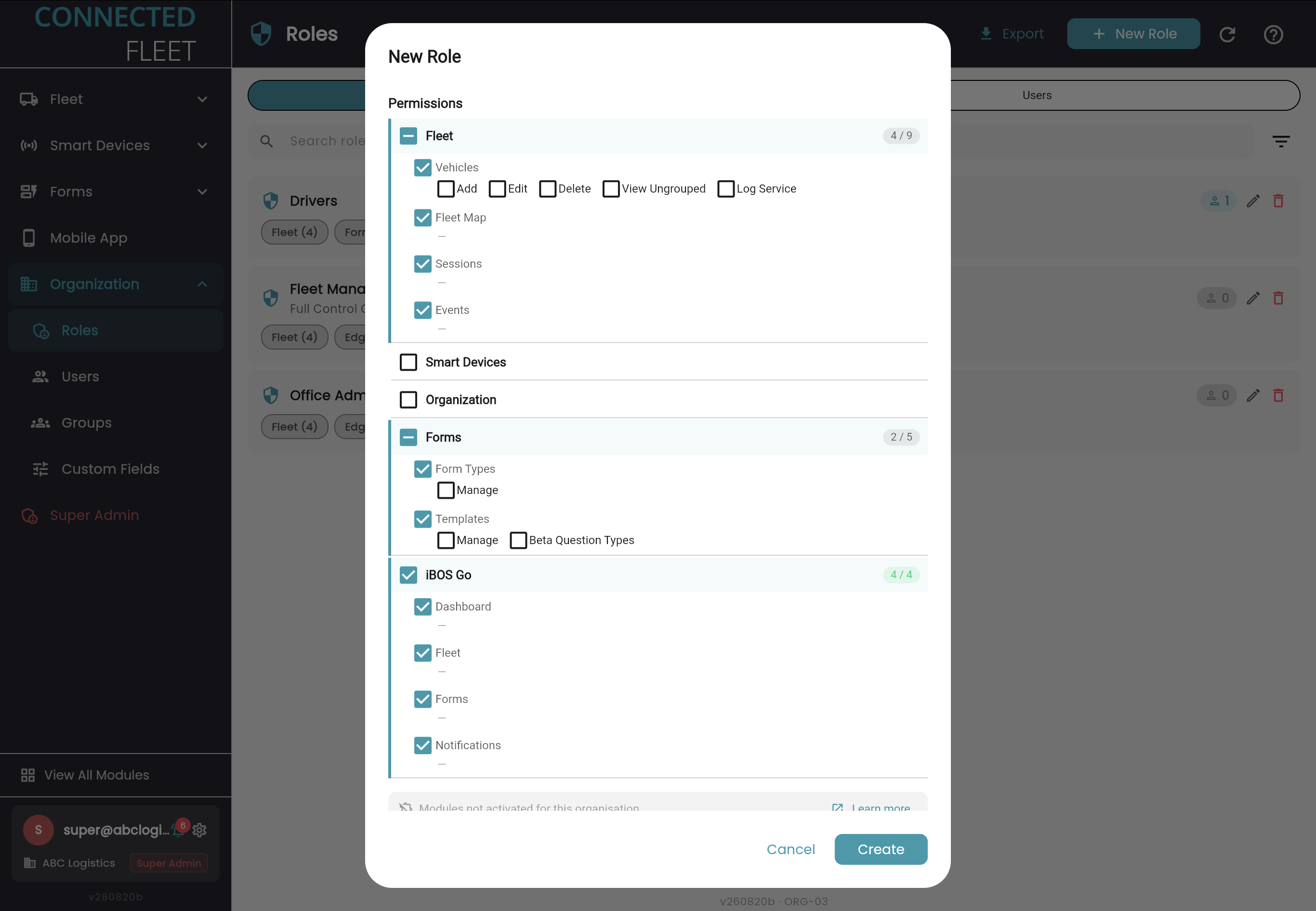
Roles are yours to define. Build a role from the ground up and set exactly which modules it reaches and what it can do inside each one, down to the individual action. A driver sees the fleet map and their forms. A fleet manager sees everything else.
Define unlimited roles, named for how your business actually works
Scope by module: Fleet, Smart Devices, Organization, Forms, Mobile App
Scope by action inside each module: add, edit, delete, view ungrouped, log service
Live coverage counters, such as Fleet 4/9, show the reach of a role at a glance
Assigned-user count on every role, so nothing is granted and forgotten
ORG-03 · Organisation → Roles
ORG-03 · New role, permission scopes
04 —SEGMENTATION
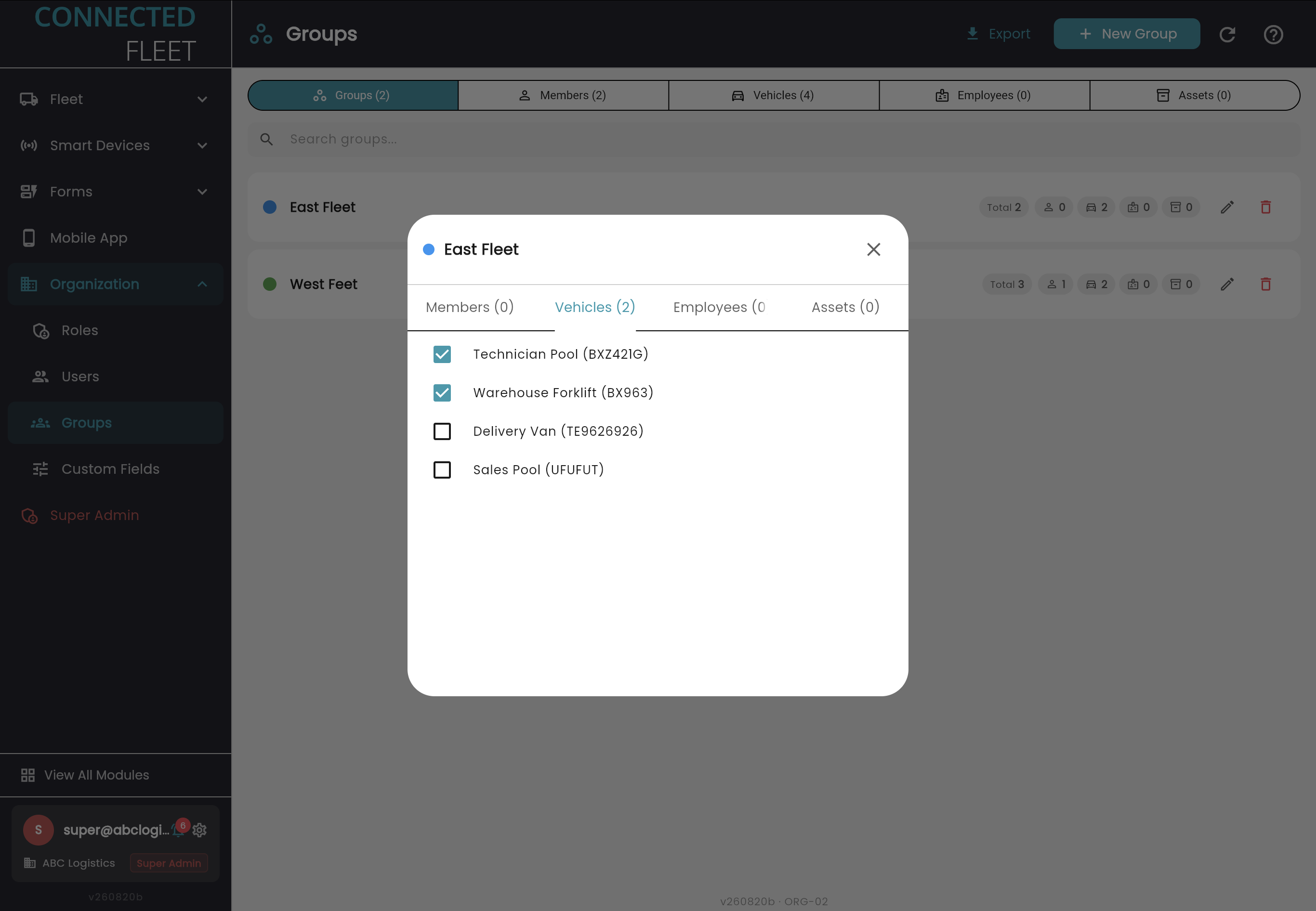
Custom groups
Groups cut the fleet into the units your business actually runs: regions, depots, contracts, management tiers. Assign users, vehicles, employees and assets to a group, and assign anything to as many groups as it belongs in.
Group every entity type: members, vehicles, employees, assets
Multi-membership, so one vehicle can sit in a regional group and a contract group at once
Colour-coded groups with live counts per entity type
Search, edit and export the group structure as the organisation changes
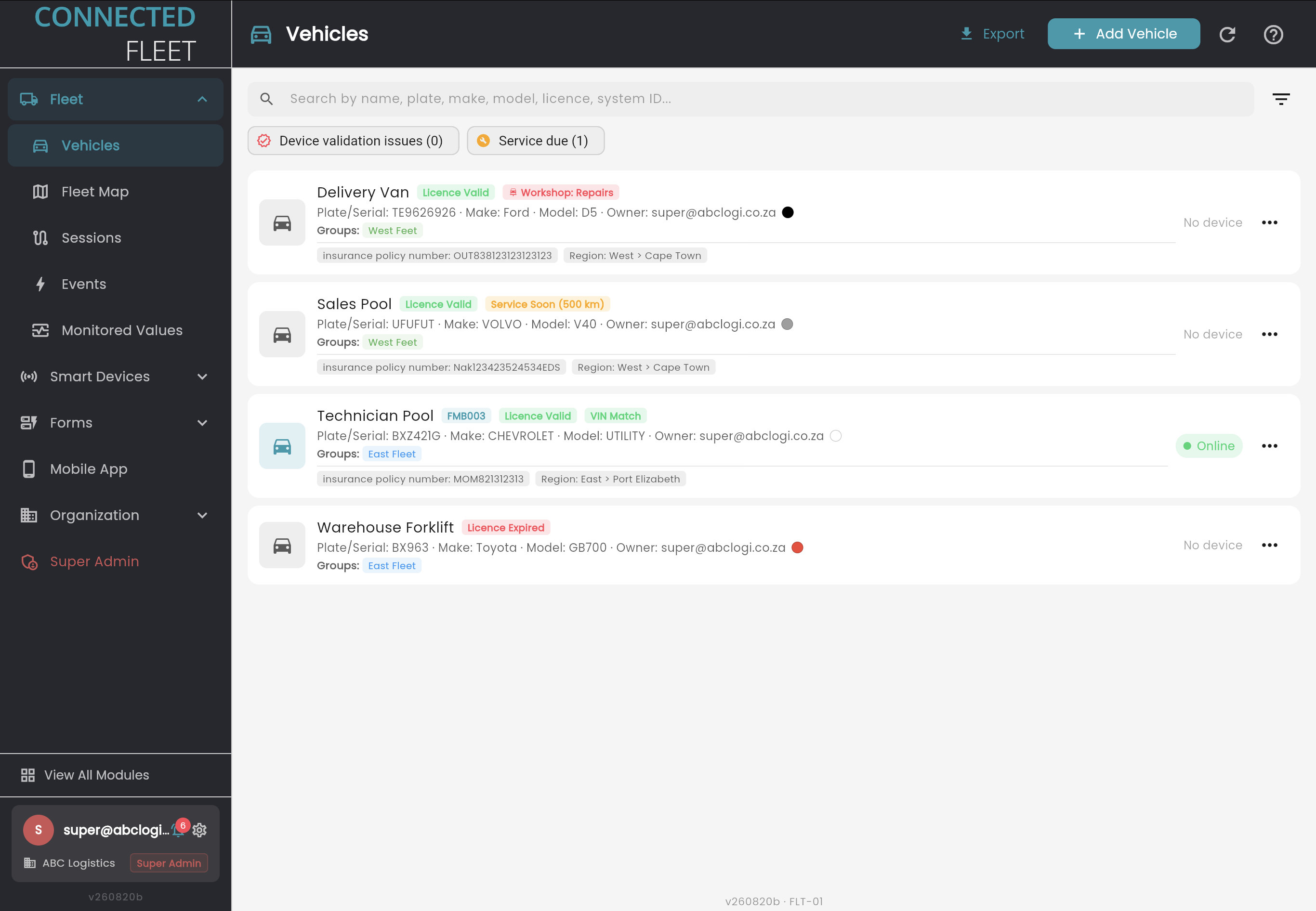
Every vehicle in one list, with its operational state on the face of the record. Licence validity, workshop status, service intervals, device connectivity and group membership all read at a glance, before anyone opens anything.
Status badges per vehicle: licence valid or expired, workshop, service soon with distance remaining
Live device state, online or no device, so gaps in telemetry coverage are visible immediately
One-tap filters for device validation issues and vehicles with service due
Search across name, plate, make, model, licence and system ID
Group membership and your own custom field values shown inline on every record
Export the register whenever it is needed
FLT-01 · Fleet → Vehicles
06 —ONBOARDING
Scan to add a vehicle
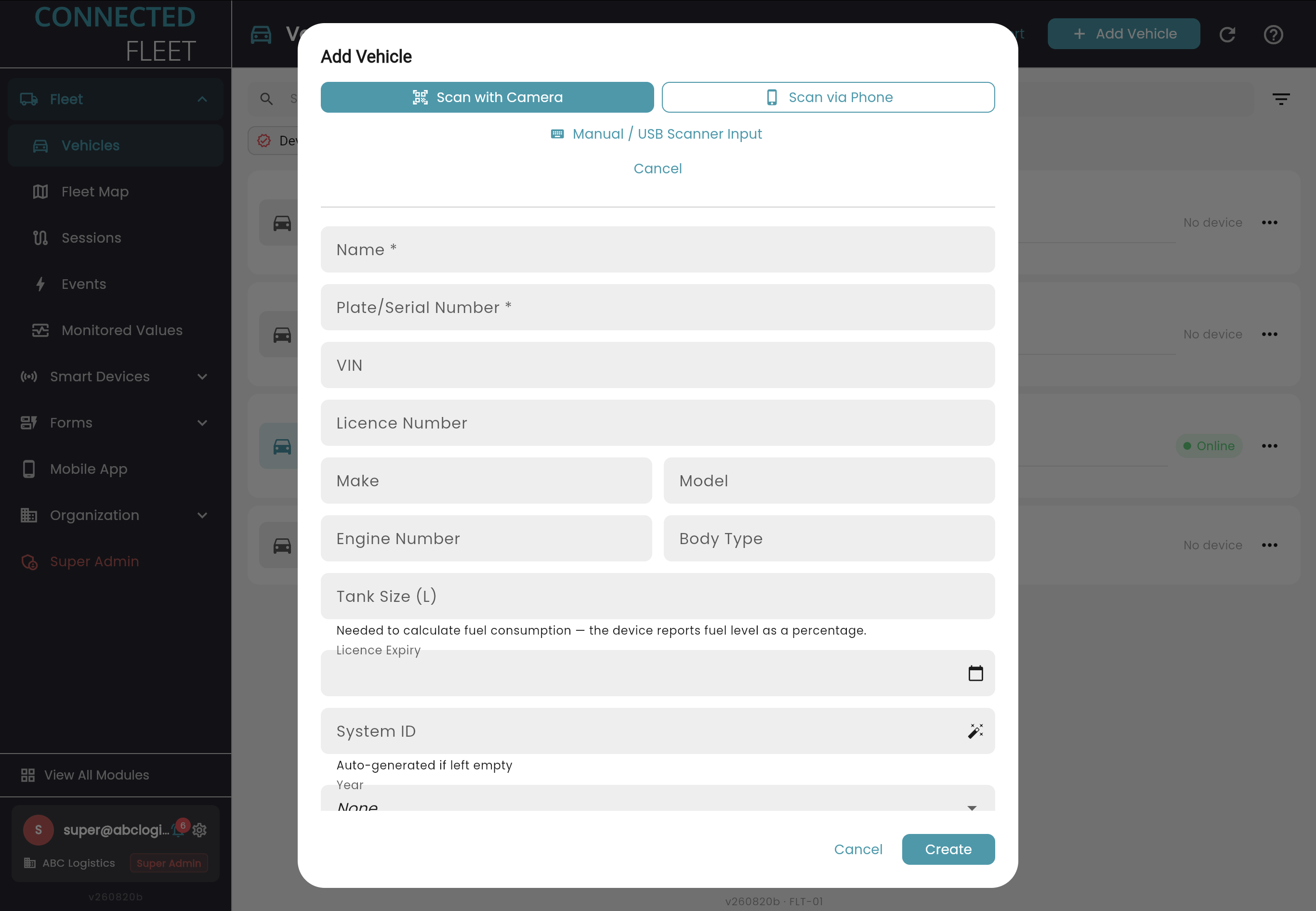
Adding a vehicle does not mean copying a VIN off a windscreen. Scan the motor vehicle licence disc with a webcam or a phone camera and the record fills itself in. Manual and USB scanner entry are there for depots that work that way.
Scan with a desktop webcam, or hand the scan off to a phone
Manual and USB scanner input as alternatives, not afterthoughts
Captures name, plate or serial, VIN, licence number, make, model, engine number, body type and licence expiry
Tank size feeds fuel consumption, because the device reports fuel level as a percentage
System ID auto-generates when the field is left empty
FLT-01 · Add vehicle
07 —EXTENSIBILITY
Custom fields
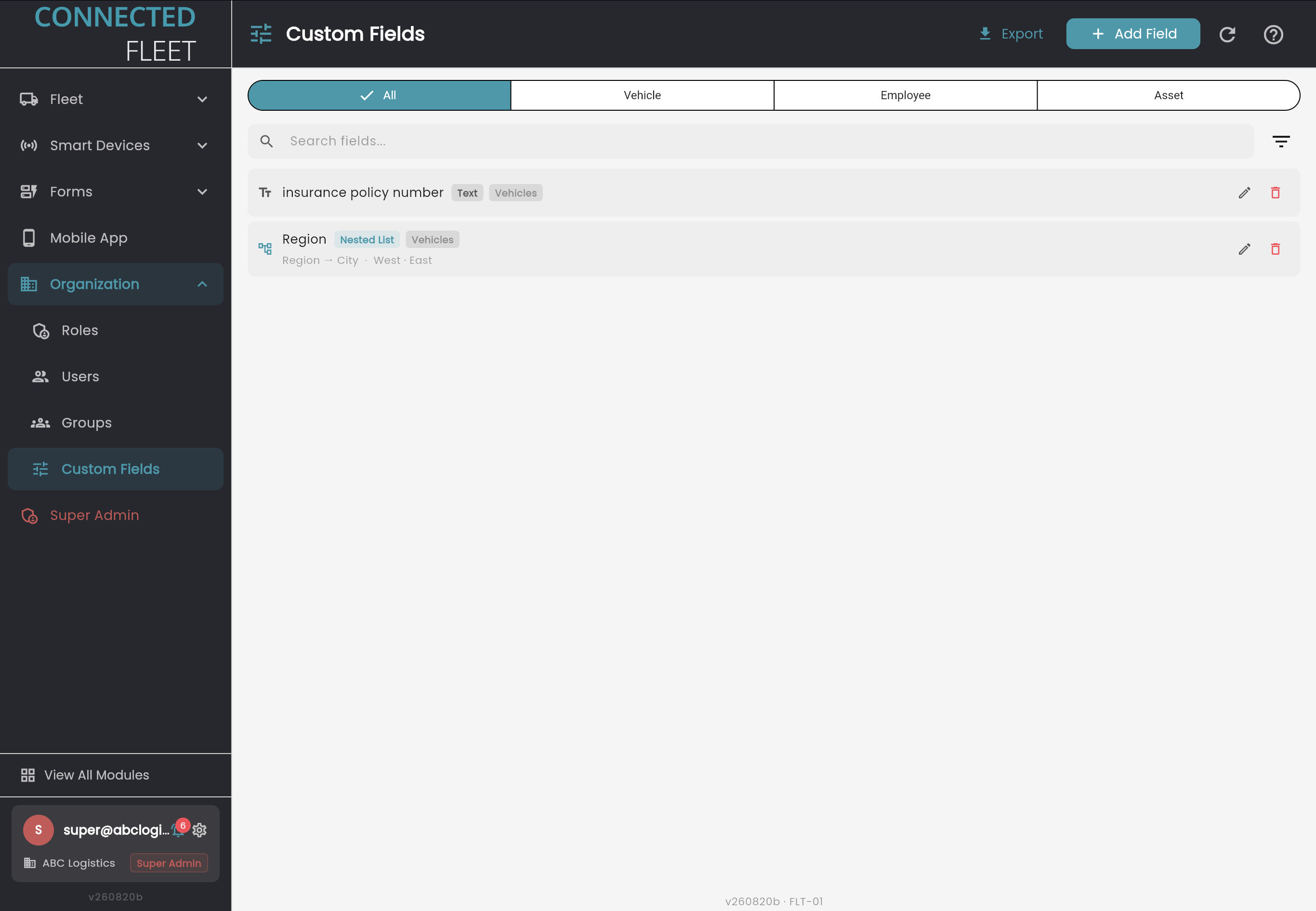
Every fleet tracks something the standard record does not hold. Define your own fields against vehicles, employees and assets, and they appear on the record and travel with your exports alongside everything else.
Field types: text, date and nested list
Nested lists hold real hierarchies, so Region → City keeps West → Cape Town structured instead of free text
Scope each field to vehicles, employees or assets
Values render inline on the vehicle record, and are searchable and exportable
Organisation → Custom Fields
08 —VEHICLE RECORD
Status, licence and service
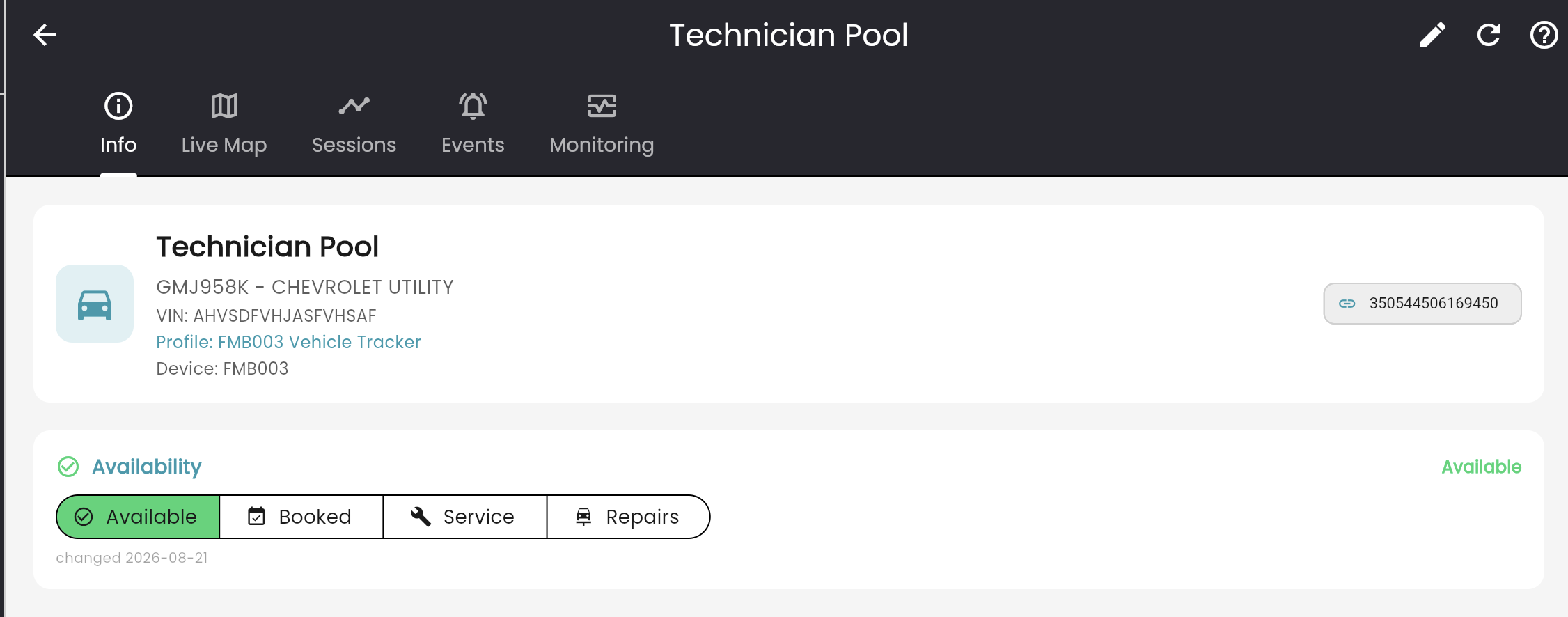
Open a vehicle and the operational picture is on one page. Current availability, the licence captured from the disc scan, and the service position measured against a live odometer reading, each carrying the date and the source it came from.
Availability set in one action: available, booked, service or repairs, with the change date on the record
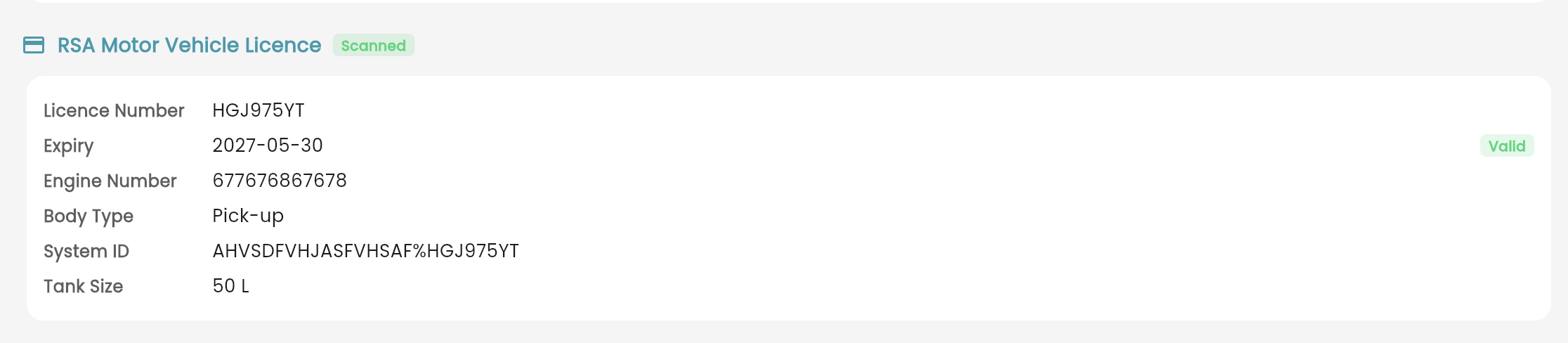
RSA motor vehicle licence held on the vehicle, marked as scanned, with expiry and a validity indicator
Licence number, engine number, body type, system ID and tank size captured from the disc rather than retyped
Service tracked against the odometer or against engine hours, so plant and vehicles run on the same system
Odometer read from the connected device, with the age of the reading and the last full service date shown
Log a service or open the full service history without leaving the record
Live map, sessions, events and monitoring for the vehicle sit one tab away
Vehicle record · Info and availability
Vehicle record · RSA motor vehicle licence, scanned
Vehicle record · Service position and history
09 —TELEMATICS
Requires telematics device
Sessions and events
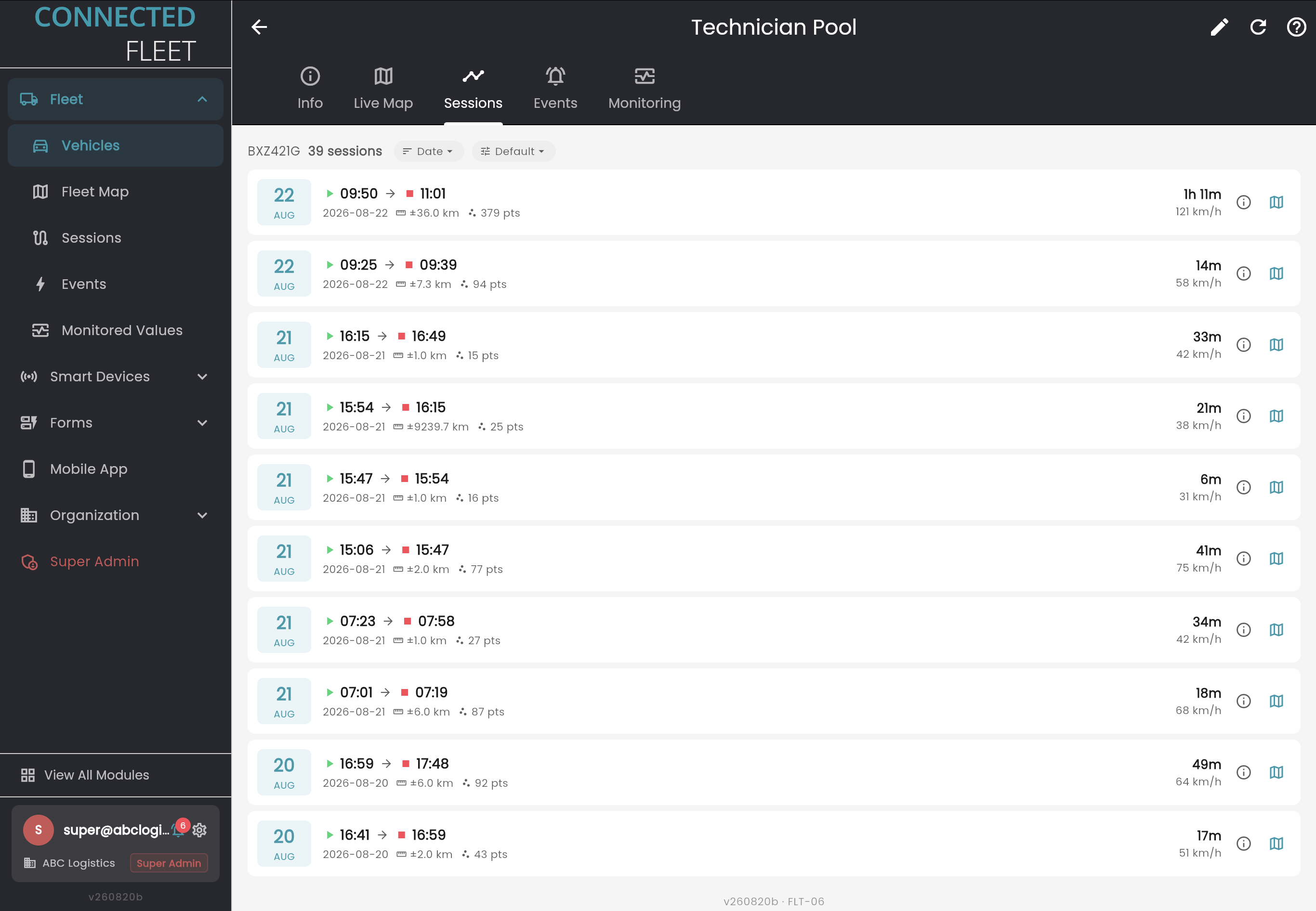
Fit a connected telematics device and the platform starts recording on its own. Every trip becomes a session with its start, end, duration, distance and top speed. Every notable occurrence becomes an event, grouped by type so a long raw log reads as the few things worth knowing.
Sessions recorded automatically, with no action from the driver
Time, duration, distance, recorded point count and maximum speed on every session
Replay any session on the map straight from the list
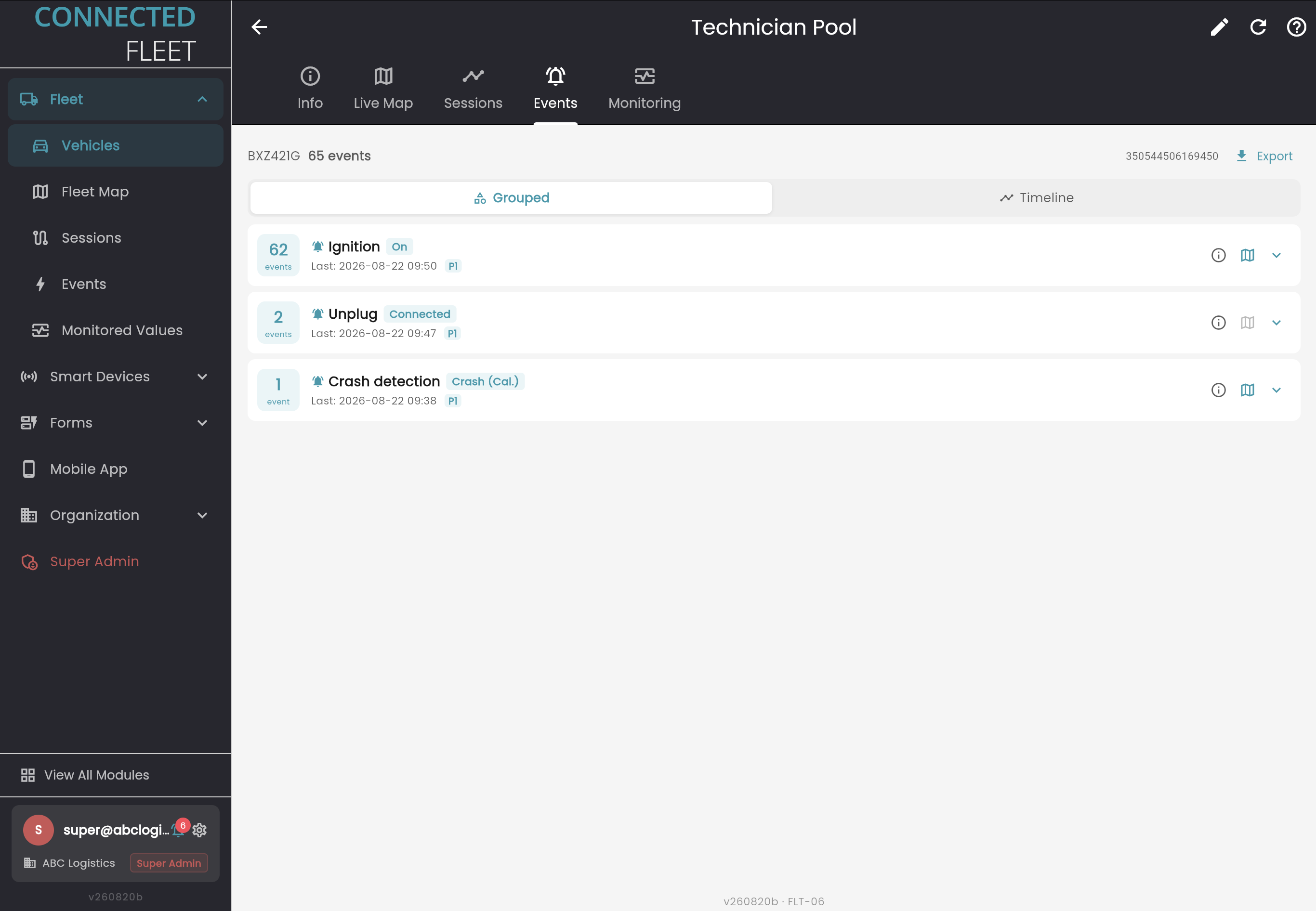
Events grouped by type, with a count and the time of the most recent occurrence
Ignition, unplug and crash detection among the event types, each mapped and timestamped
Grouped or timeline view, and export for incident reporting
Live location on the vehicle's own map tab
FLT-06 · Vehicle → Sessions
FLT-06 · Vehicle → Events, grouped
10 —SESSION PLAYBACK
Requires telematics device
Replay the trip
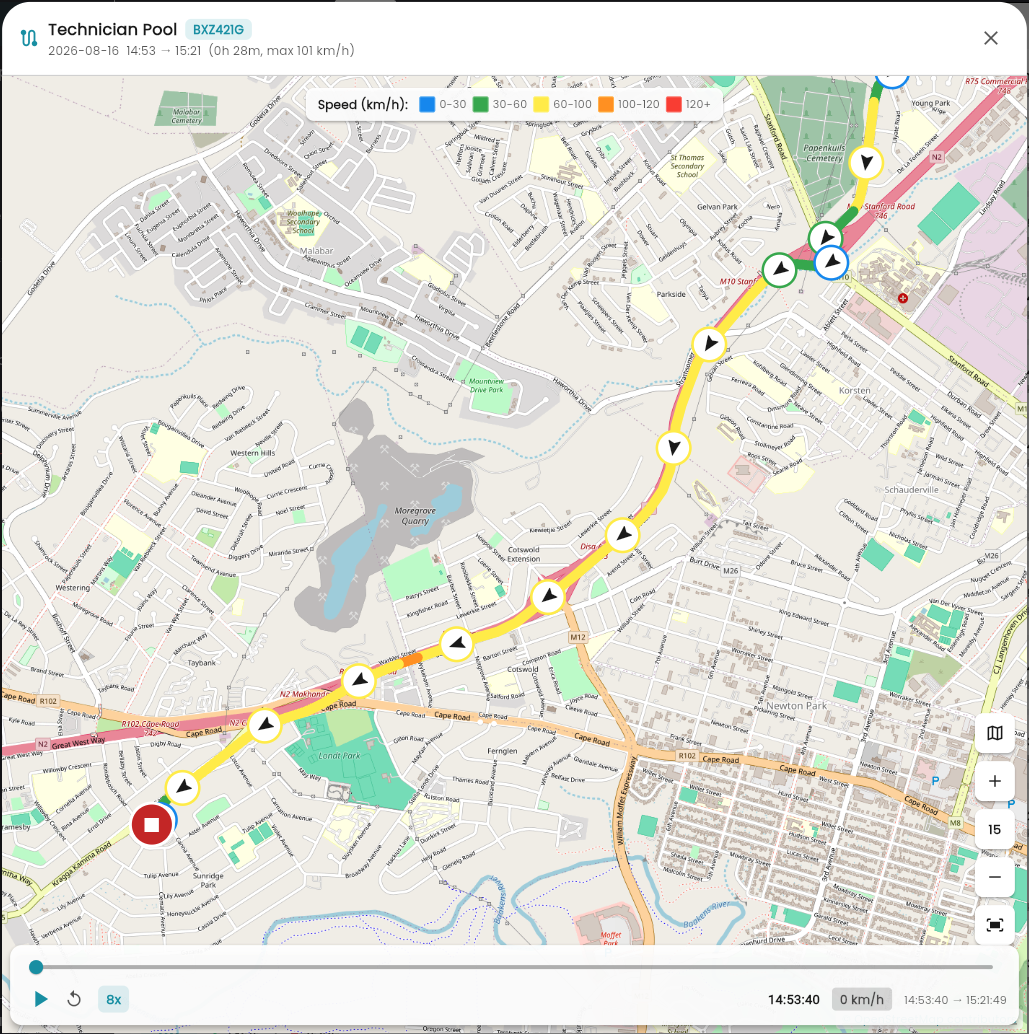
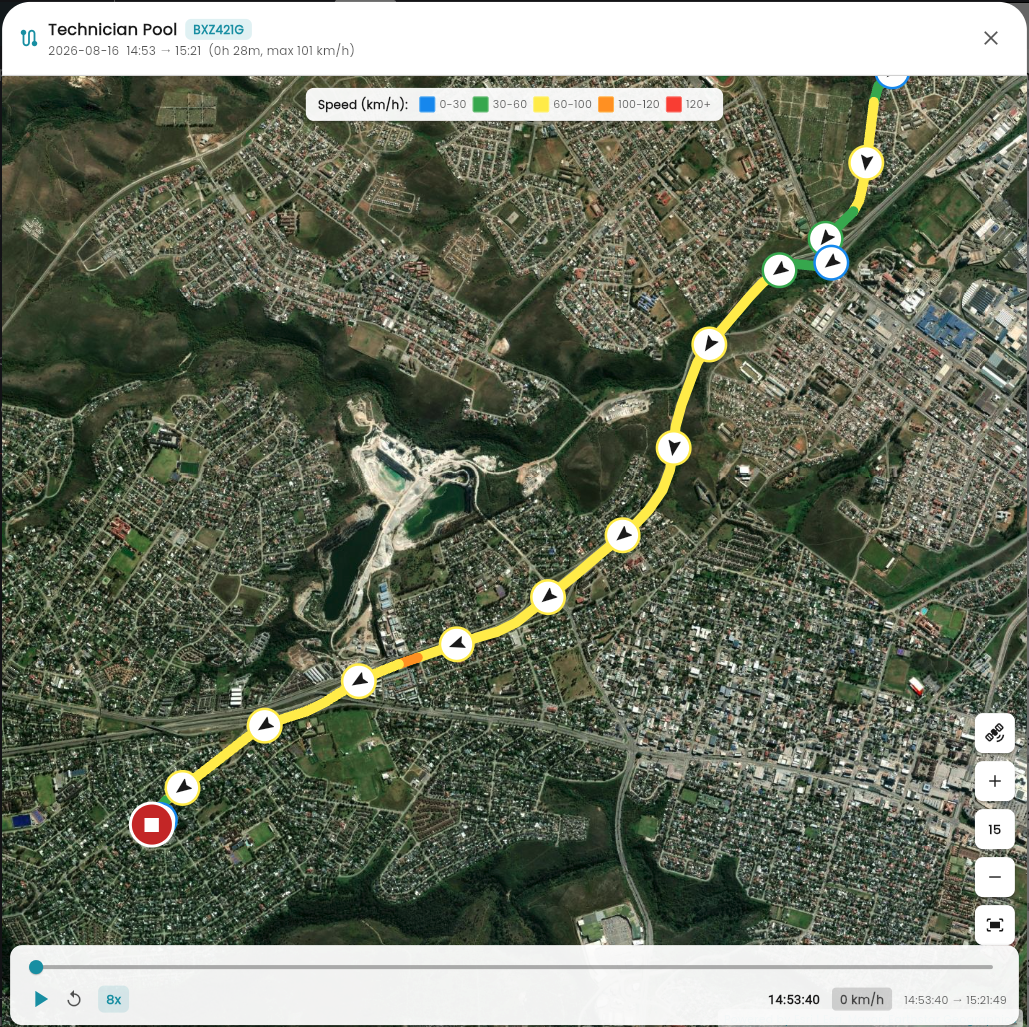
Open any session and watch it play back on the map. The route is coloured by speed band, so a hard stretch shows itself without anyone reading a number, and the timeline scrubs to any moment in the trip.
Play, pause and scrub to any point in the session
Playback up to 8x, so a half-hour trip is reviewed in minutes
Route coloured by speed band: 0-30, 30-60, 60-100, 100-120 and 120+ km/h
Direction arrow on every recorded point, with clear start and end markers
Live speed readout at the scrub position, against the session's own time range
Street or satellite base map, switched from the map control
Vehicle, plate, date, duration and maximum speed carried in the header
FLT-06 · Session playback, street map
FLT-06 · Session playback, satellite map
11 —MONITORED VALUES
Requires telematics device
Monitor what matters
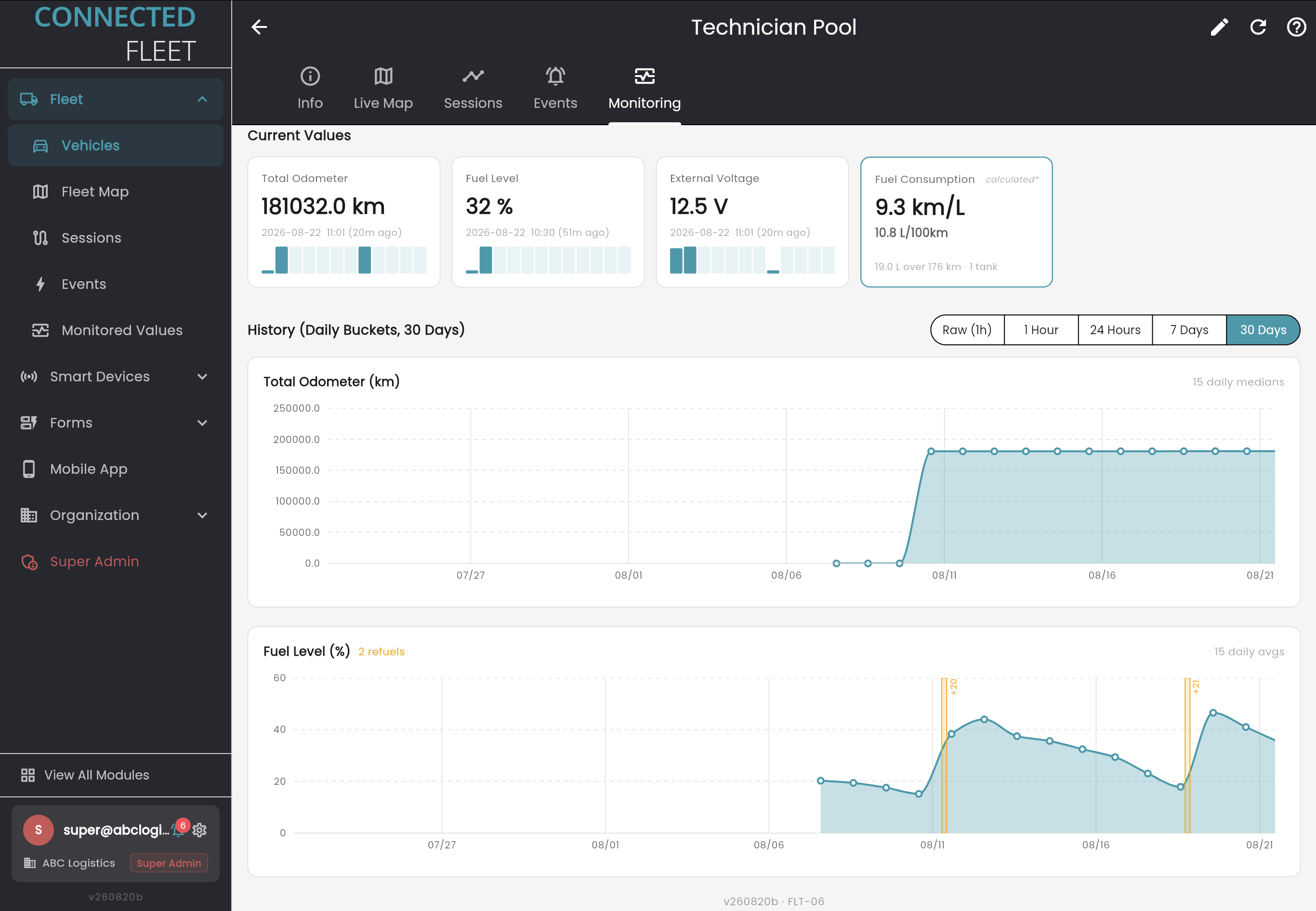
Choose the values worth watching and the platform tracks them over time. Odometer, fuel level, external voltage, calculated fuel consumption: each with the current reading, the age of that reading, and the history behind it.
Current value cards showing the reading, its timestamp and how long ago it arrived
Fuel consumption calculated from tank size and reported level, in km/L and L/100km
History at raw, hourly, daily, weekly and monthly resolution
Refuels detected and marked on the fuel trace, with the volume added
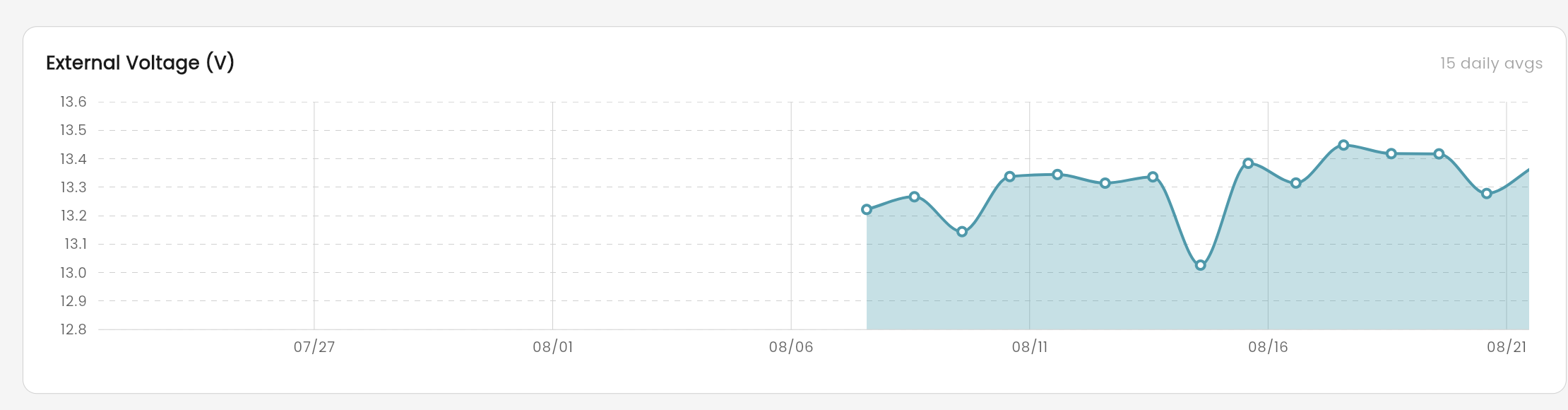
Trends that surface a problem before it becomes a breakdown, such as external voltage drifting down as a battery ages
±50
data points to choose from
FLT-06 · Vehicle → Monitoring
FLT-06 · External voltage trend, battery health
12 —FORMS
Custom form builder
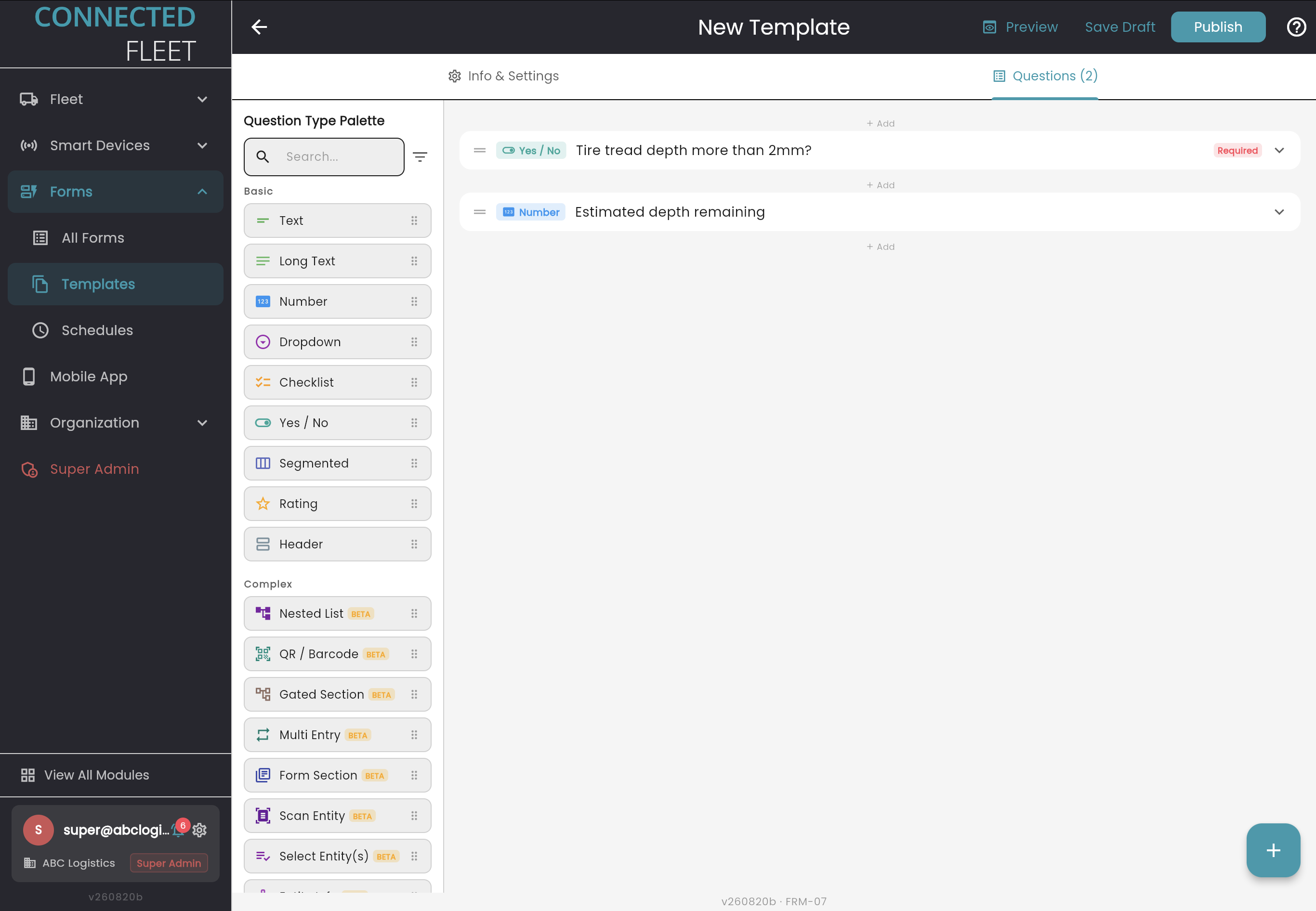
Your admin team builds the forms your operation actually uses, by dragging question types into place. No development request, no waiting on a release, no paper.
Drag and drop question types from the palette into the form
Basic types: text, long text, number, dropdown, checklist, yes/no, segmented, rating and header
Complex types: nested list, QR and barcode, gated section, multi entry, form section, scan entity and select entities
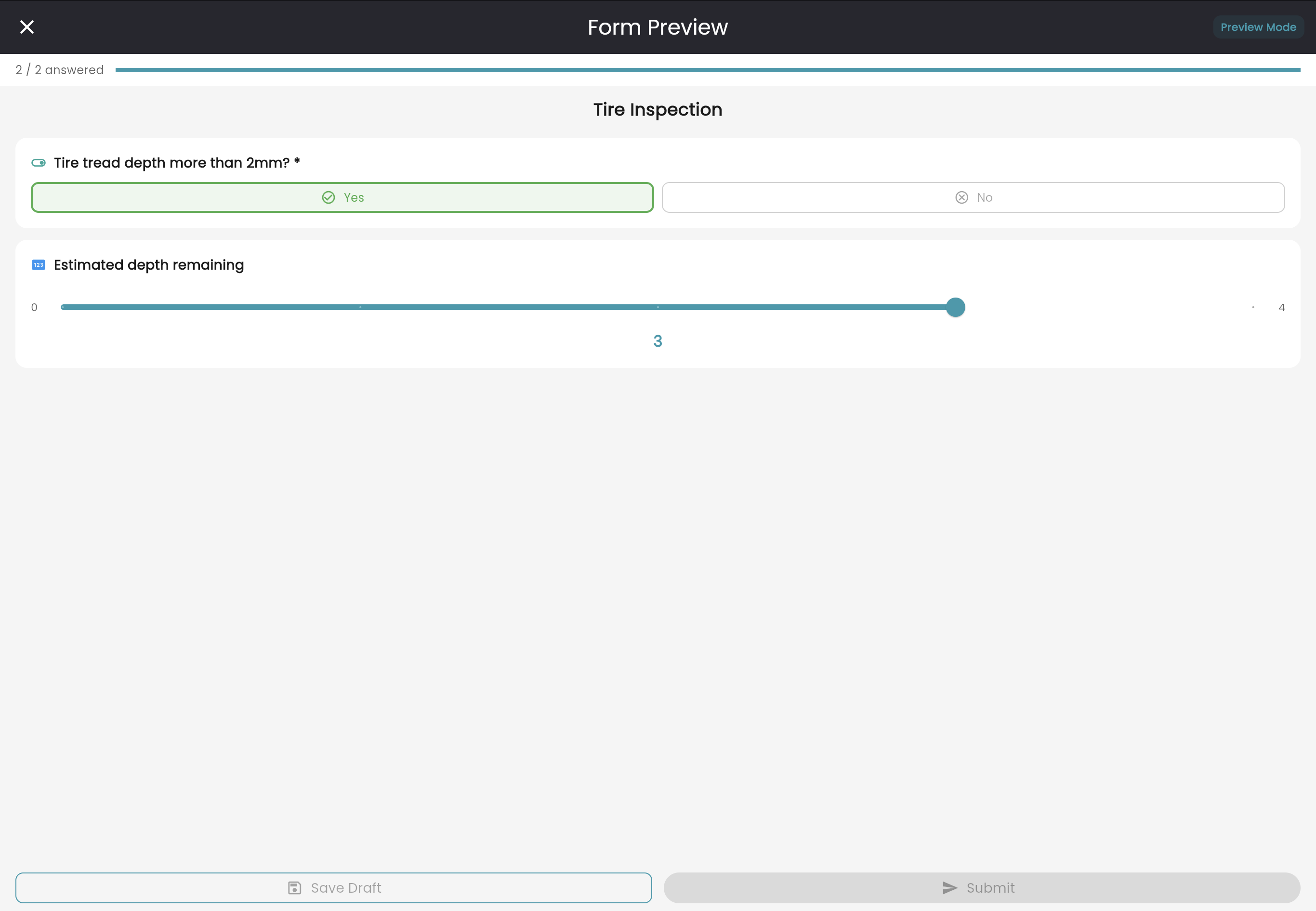
Mark questions required, reorder by dragging, and preview the finished form before it goes out
Save as a draft, publish when it is ready
Search and filter the palette as forms grow
FRM-07 · Forms → Templates, builder
FRM-07 · Form preview before publishing
13 —FORM DATA
Track, filter and export
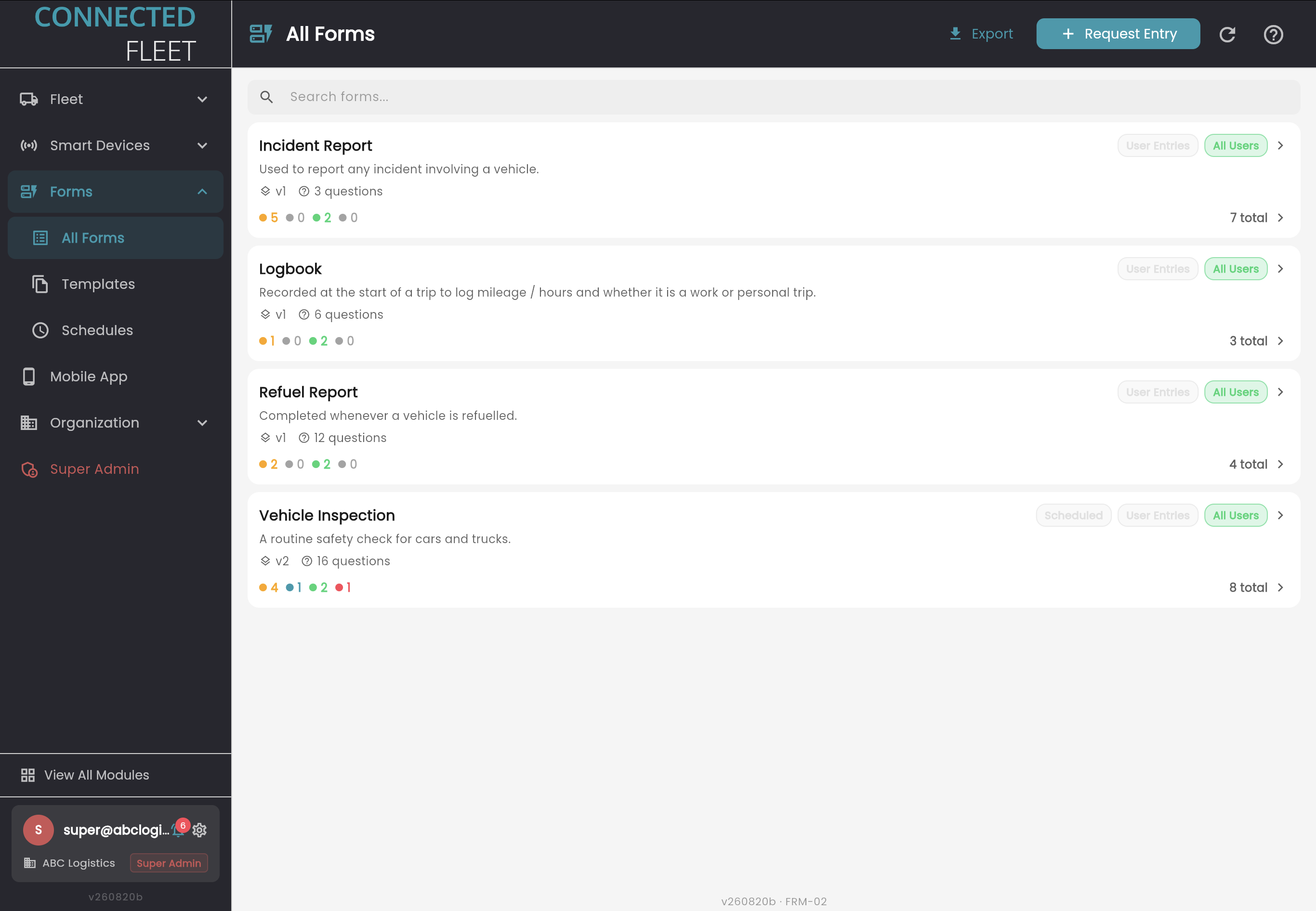
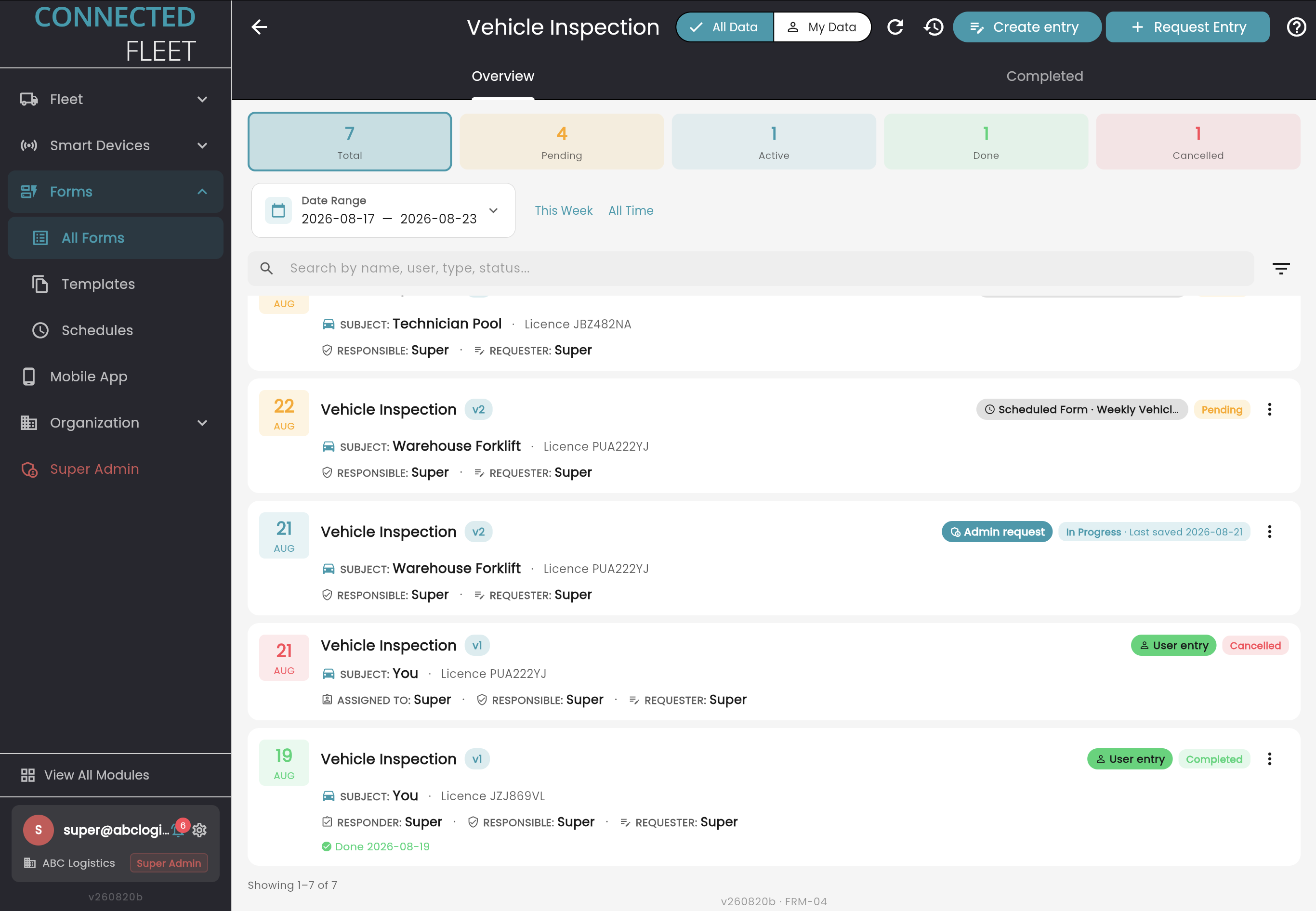
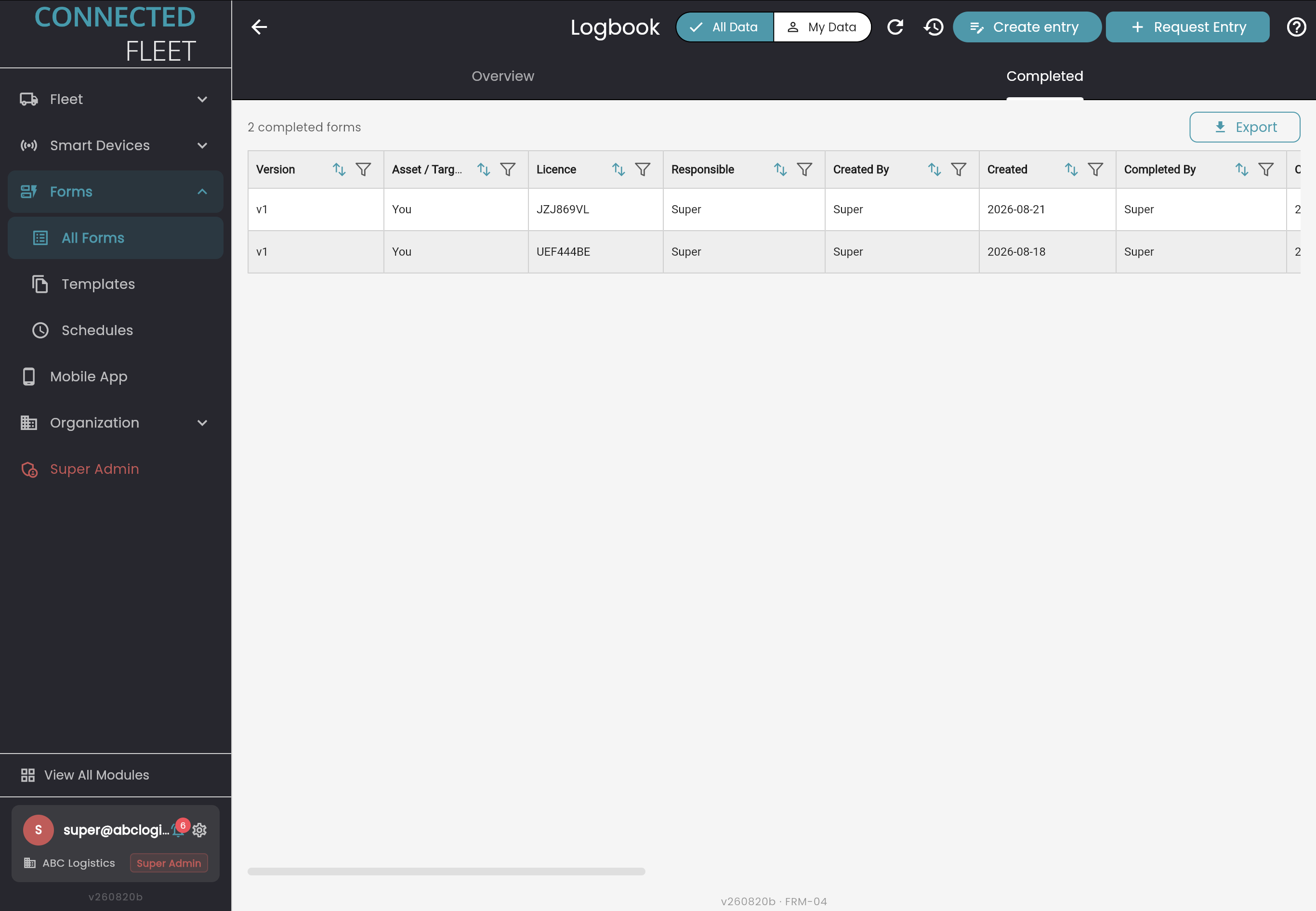
Every form and every submission in one place. The forms list carries each form's version, question count and the state of its entries. Open one and you get the totals, the full entry history, and a data grid you can take away for your own analysis.
Forms list showing version, question count and a status breakdown per form
Per-form tiles for total, pending, active, done and cancelled
Date range filters, this week or all time, and search by name, user, type or status
Provenance on every entry: subject vehicle and licence, responsible, requester and responder
Origin marked on each record: scheduled form, admin request or user entry
Dynamic data grid with per-column sort and filter
Export a single form or the whole sheet for analysis outside the platform
FRM-02 · Forms → All Forms
FRM-04 · Form overview, entry status and history
FRM-04 · Completed entries, data grid and export
14 —SCHEDULING
Form schedules
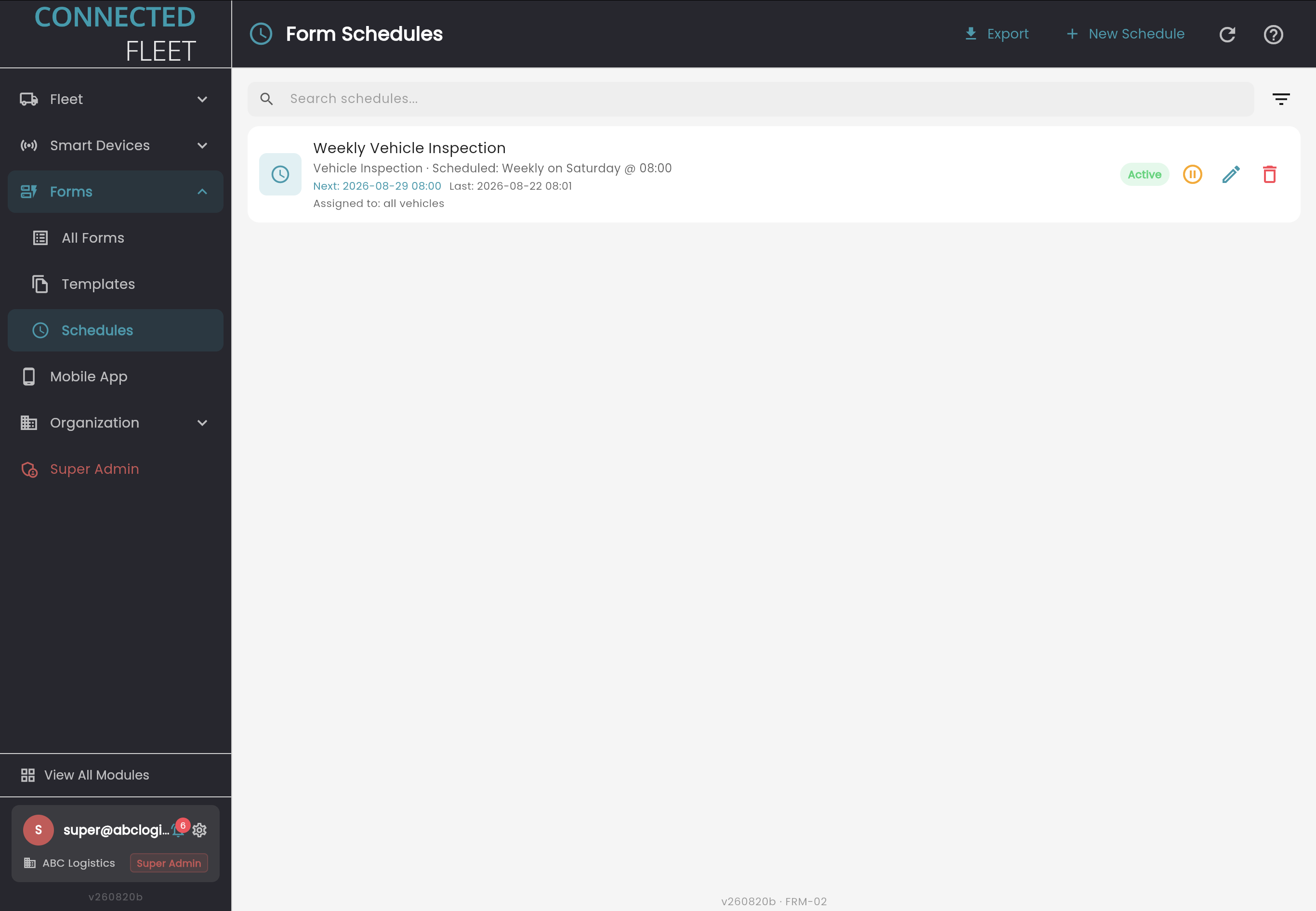
Recurring compliance work should not depend on anyone remembering it. Set a schedule and the platform raises the form on time, against the vehicles it applies to, and tracks whether it came back.
Schedule any published form on a recurring pattern, for example weekly on Saturday at 08:00
Assign a schedule to all vehicles or to a selected set
Next run and last run shown on the schedule itself
Pause, edit or remove a schedule without losing the entries it has already raised
Scheduled entries appear in the forms list marked with their origin and their due state
FRM-02 · Forms → Schedules
15 —NOTIFICATIONS
Assigned work reaches people
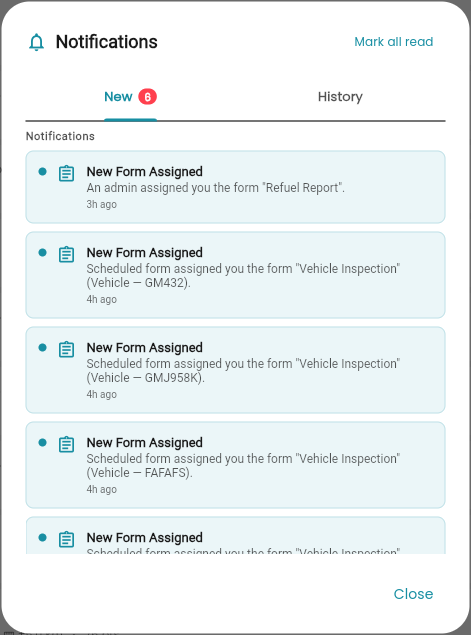
A form nobody knows about does not get filled in. When work is assigned, whether by an admin or by a schedule, the person responsible is notified in the platform, with the form and the vehicle named in the message.
Notified the moment a form is assigned, by an admin or by a schedule
Form name and subject vehicle carried in the message, so the job is clear before it is opened
Unread count on the bell, with separate New and History tabs
Relative timestamps, so what is fresh and what is ageing reads at a glance
Mark all read in one action
Notifications · New form assigned
16 —MOBILE
Mobile App
The work happens away from a desk. The Mobile App puts the forms in the crew's hands, so a refuel or an incident is captured where it happens, rather than written up later from memory.
Native app for iOS and Android
Crews complete their assigned forms in the field: refuel reports, incident reports, inspections
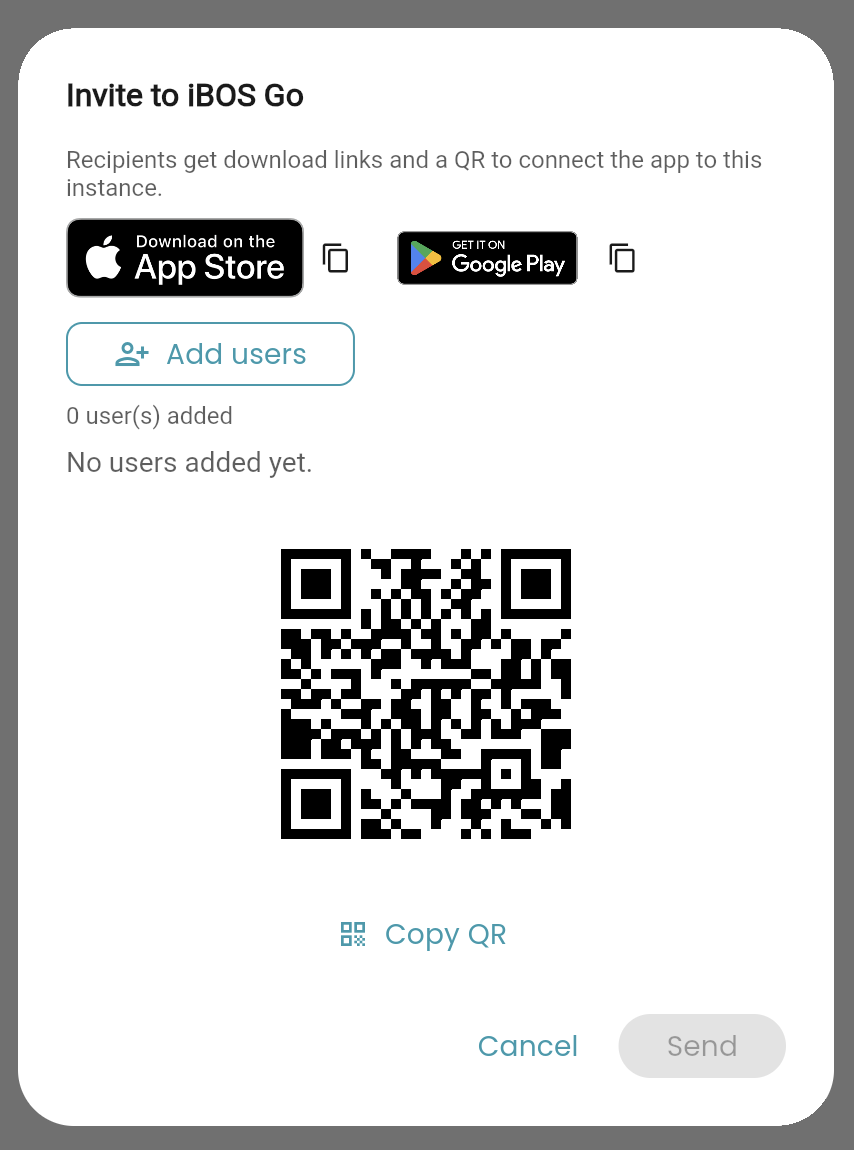
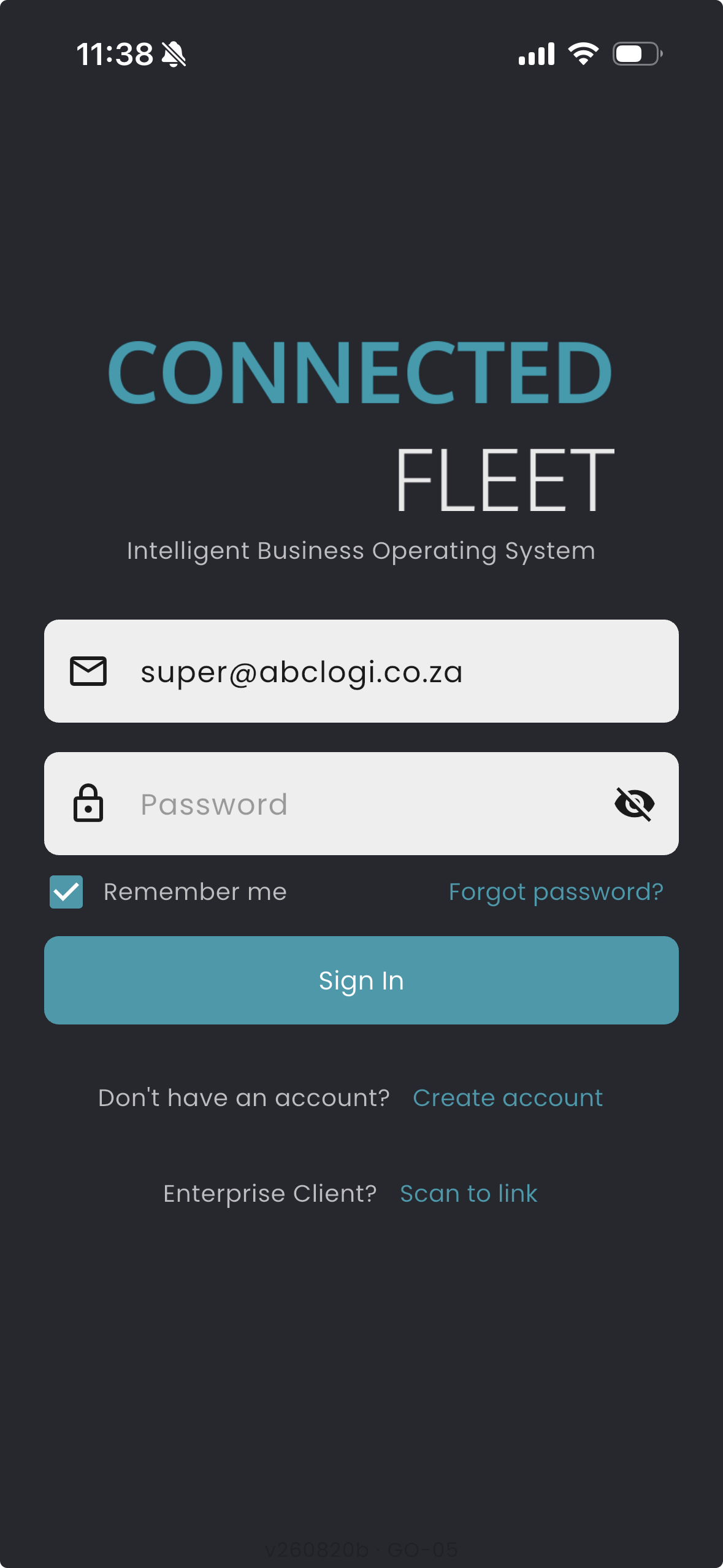
Invite users from the platform, with store links and a QR that connects the app to your instance
Enterprise users scan to link, so nobody hand-types a server address
Submissions land in the same forms list, with the same status tracking and export
GO-05 · Mobile App → Invite
GO-05 · Mobile App sign-in
17 —IN THE FIELD
What the crew sees
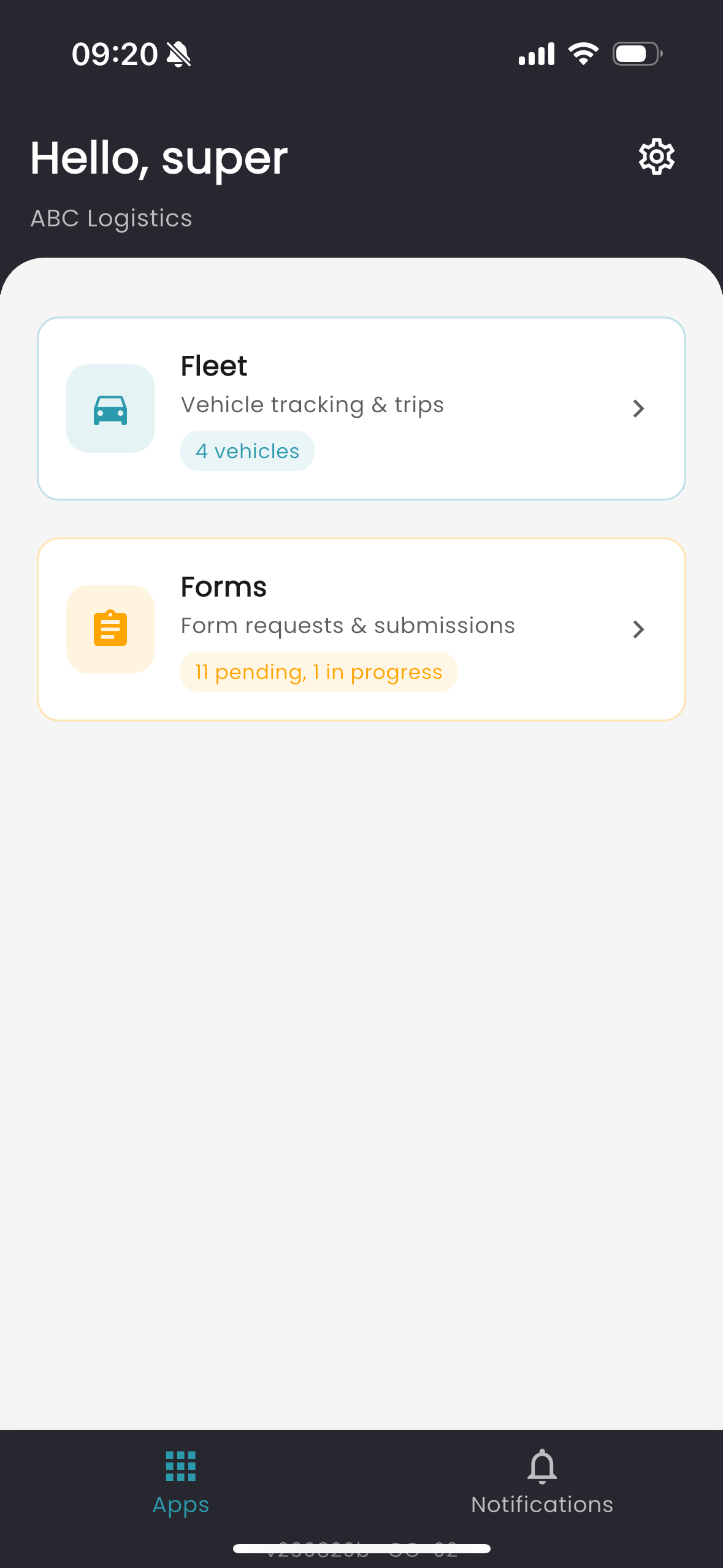
The app opens on what that person is responsible for. The vehicles in their groups, the forms assigned to them or raised against those vehicles, and a way to start a new entry the moment something happens.
Home screen showing only the modules the user's role allows, each with its own outstanding count
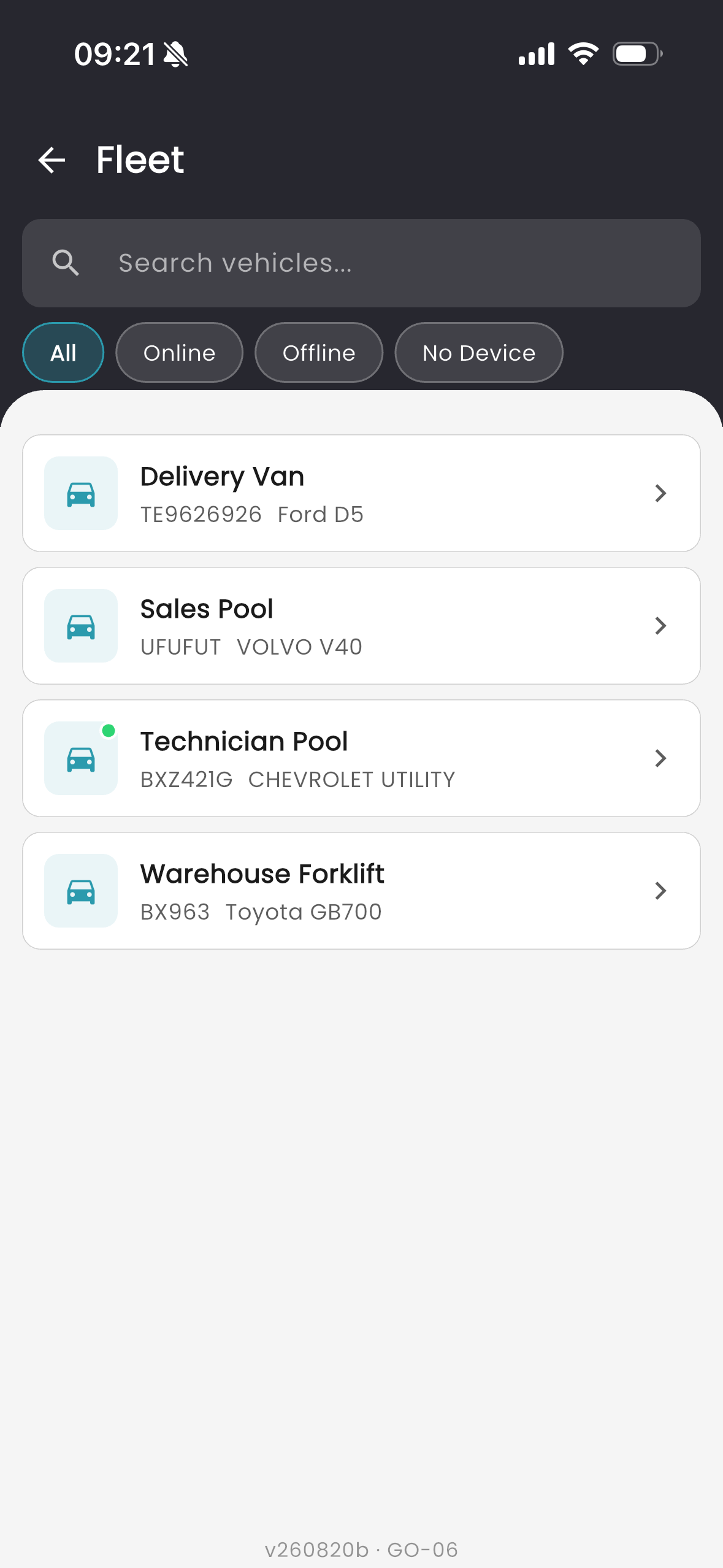
Fleet list scoped to the user's groups, filtered by online, offline or no device
Live connection state on each vehicle, matching the web platform
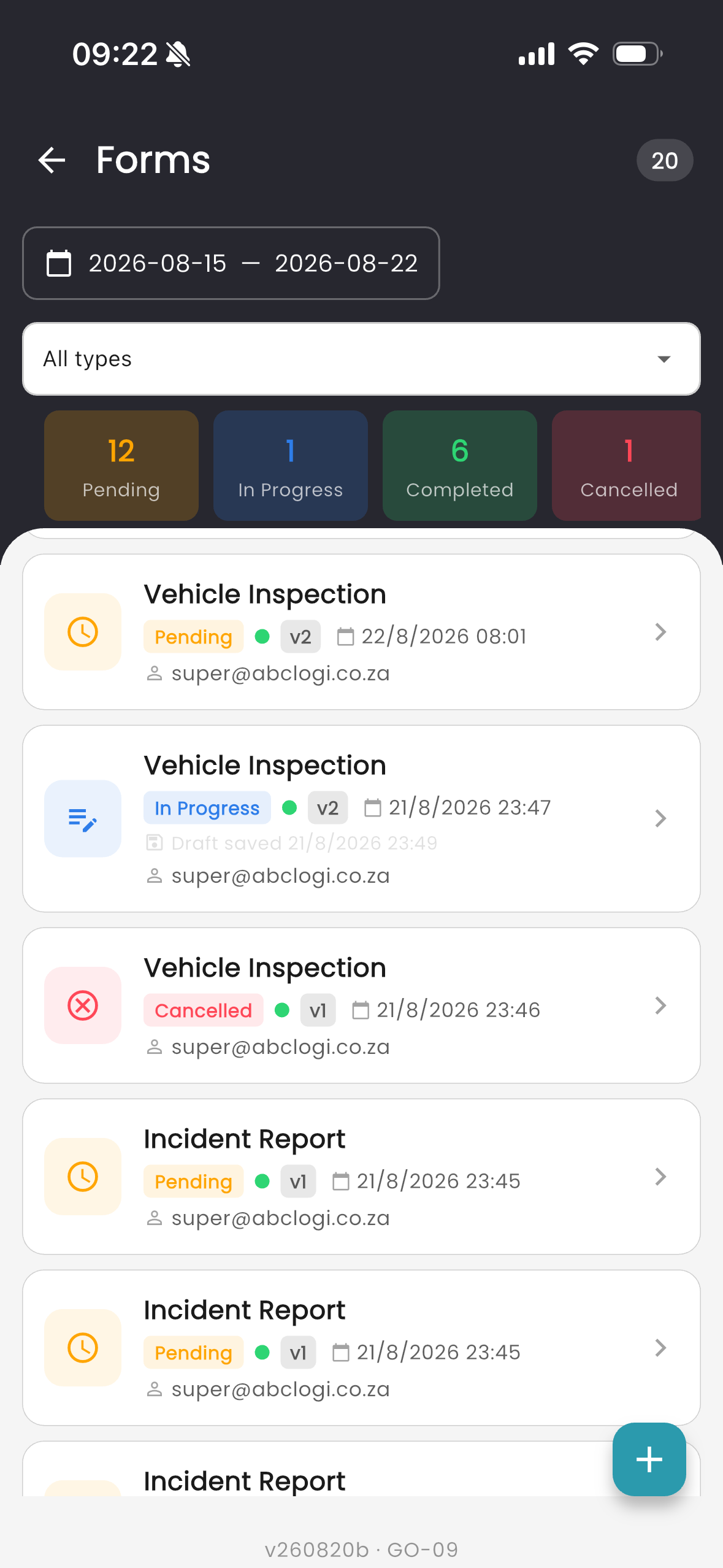
Forms list with pending, in progress, completed and cancelled counts, filtered by date range and type
Form version shown on every entry, and drafts saved as work progresses
Create a new entry at any point, such as a refuel or a logbook entry, without waiting to be asked
GO-02 · Home
GO-06 · Fleet
GO-09 · Forms
18 —IN THE HAND
Dynamic forms, at your fingertips
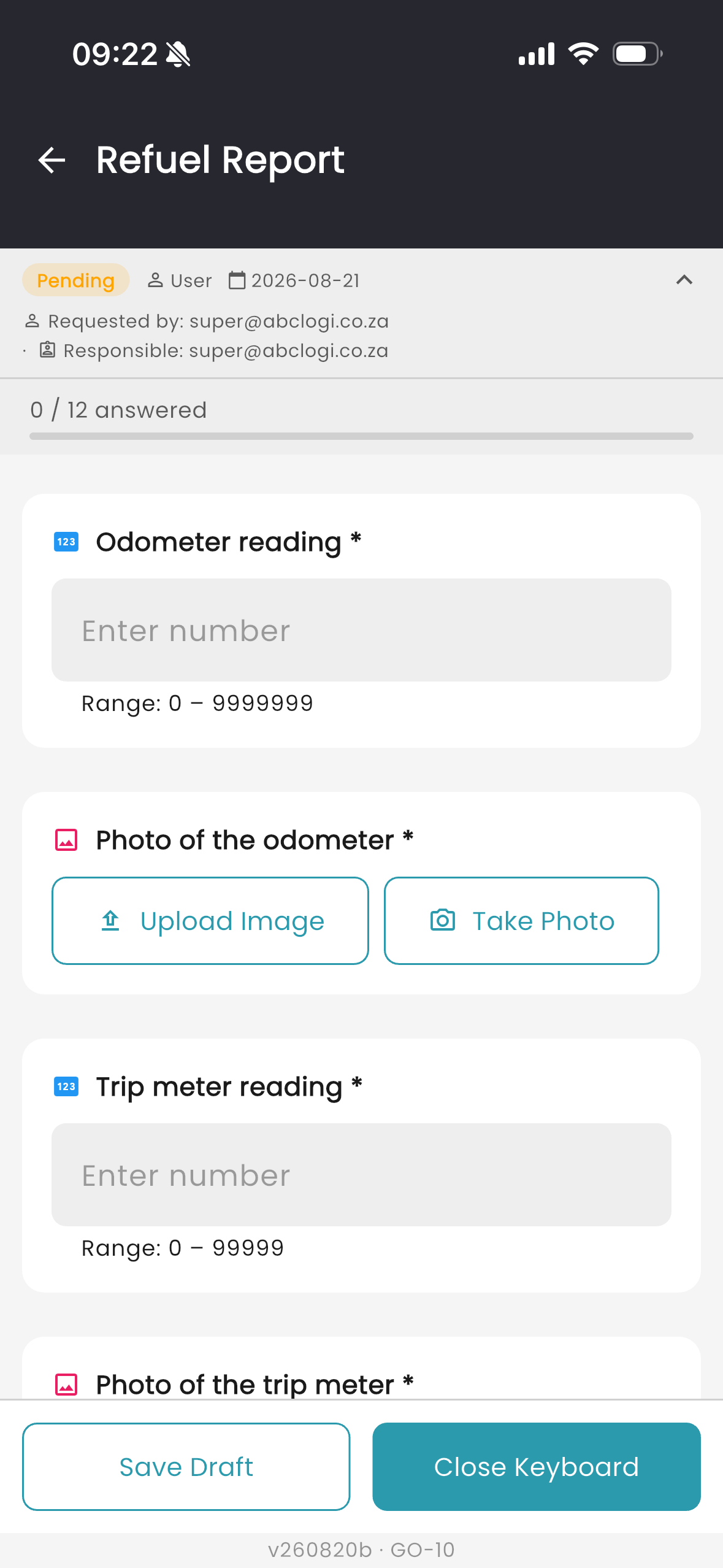
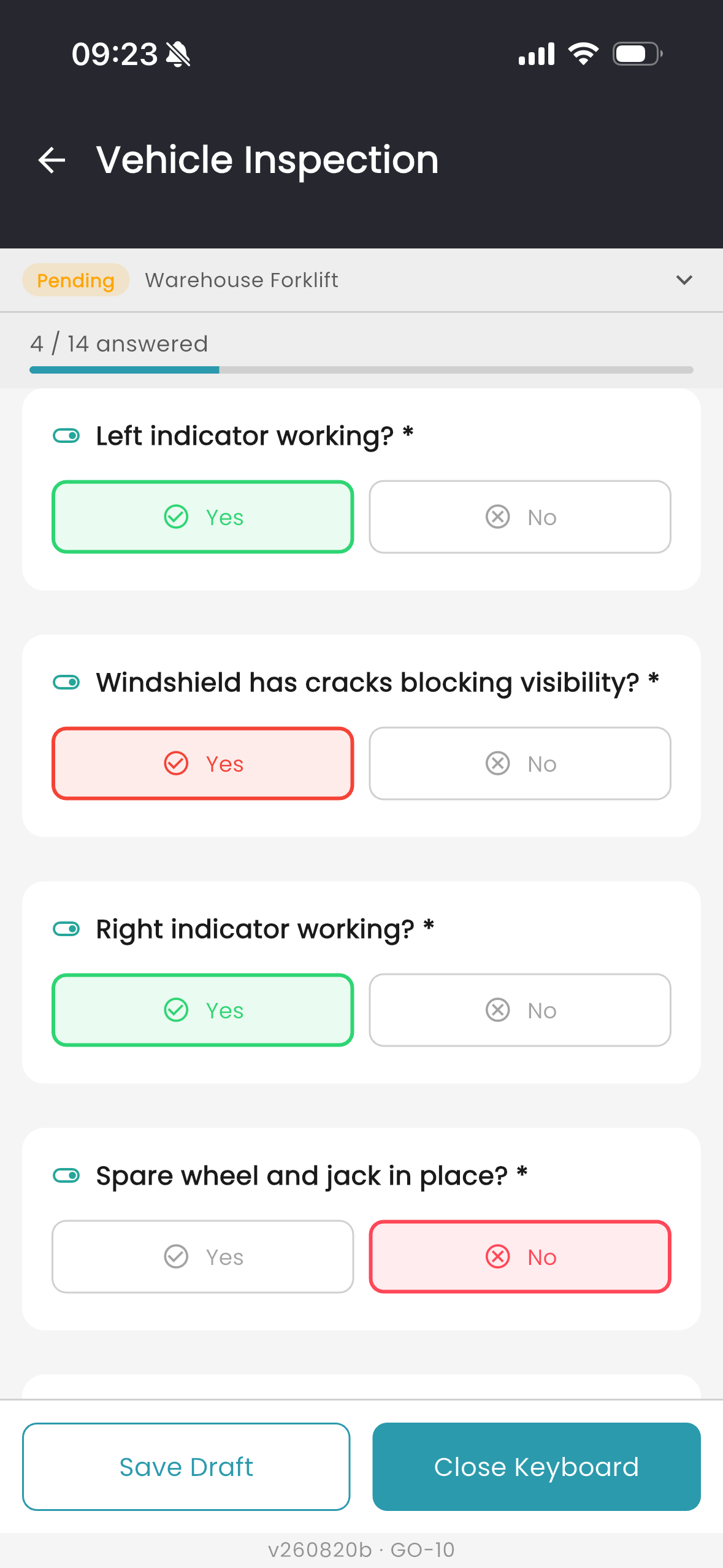
The form the crew fills in is the form your admin team built. Required fields, numeric ranges, photo capture and pass or fail colouring, all rendered natively on the phone.
Progress counter and bar, so a long inspection shows how much is left
Required fields marked and enforced before the entry can be submitted
Numeric fields with defined ranges, cutting typing errors on odometer and trip readings
Photo capture inside the form: take a photo or upload one as proof against the reading
Yes and no answers coloured by outcome, so a failed check reads red where it is tapped
Subject vehicle, requester and responsible person carried on every entry
Save a draft at any point and pick it up later
GO-10 · Refuel report, photo capture
GO-10 · Vehicle inspection, pass and fail
19 —IN YOUR POCKET
Requires telematics device
The whole vehicle record, on site
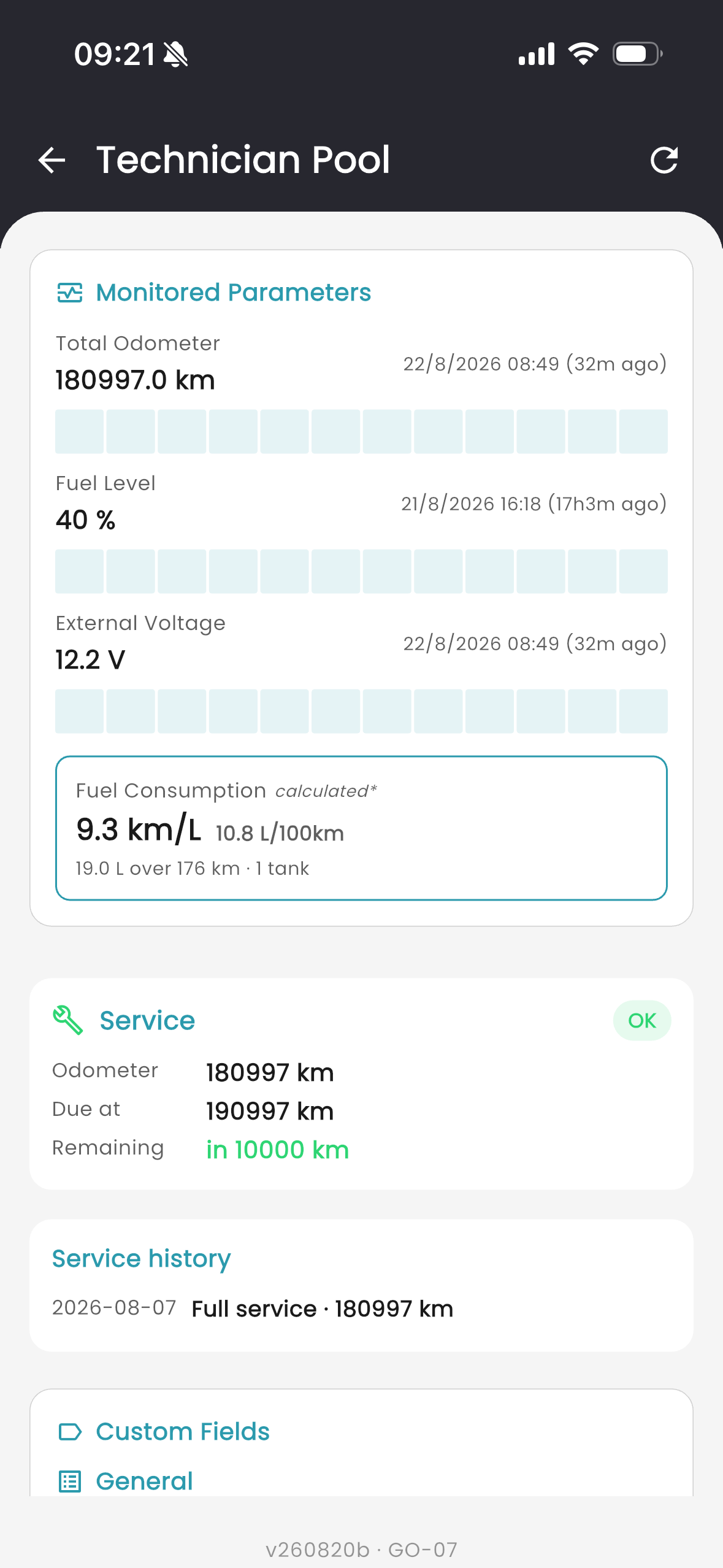
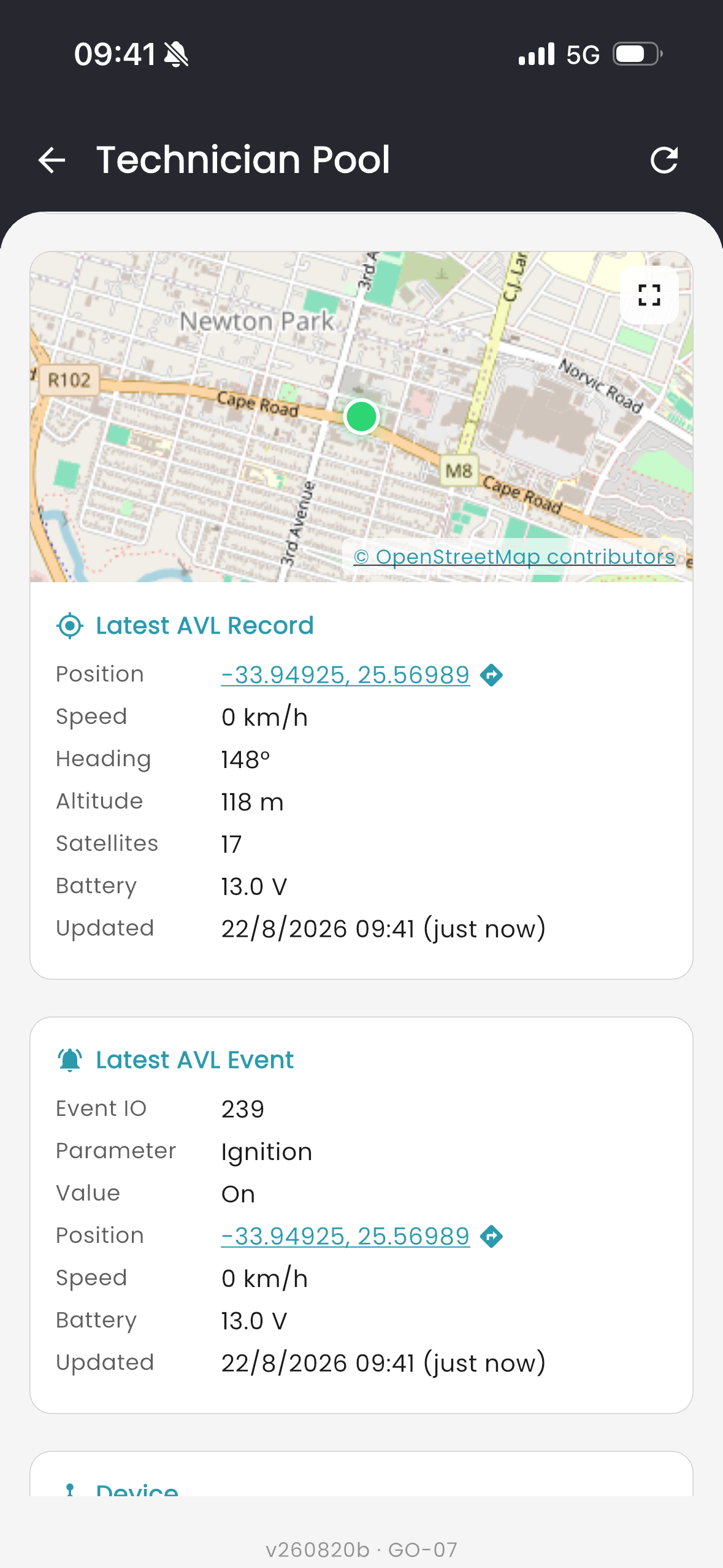
The full record travels with the person standing next to the vehicle. Monitored values, service position, your own custom fields and the last known position, every one of them carrying the age of the reading on its face.
Monitored parameters with the current reading and how long ago it arrived
Calculated fuel consumption in km/L and L/100km, with the litres and distance behind the number
Service position and full service history measured against the live odometer
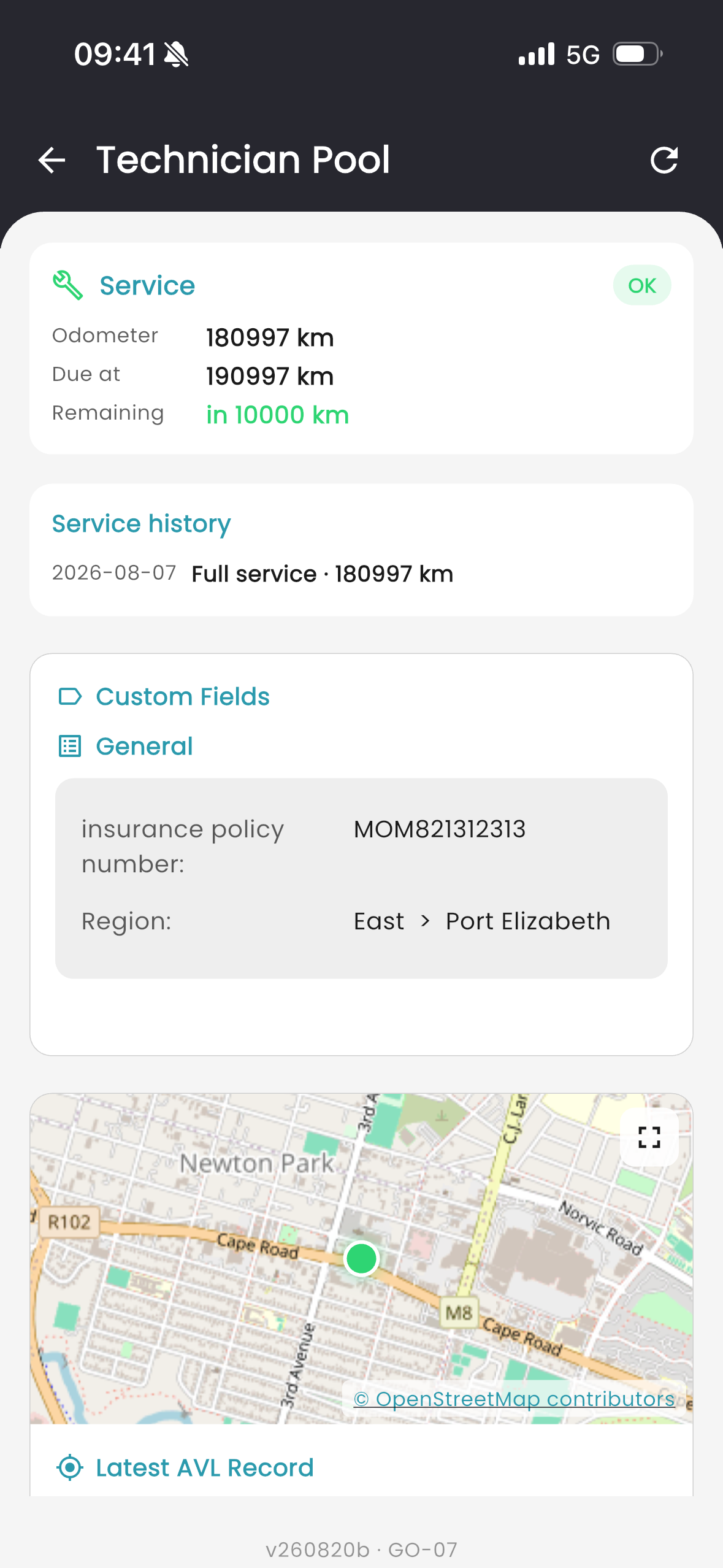
Your custom fields on the record, so insurance policy and region travel with the vehicle
Last known position on a map, with a link out to navigation
Latest AVL record: position, speed, heading, altitude, satellite count and battery voltage
Latest AVL event with its parameter, value, position and timestamp
GO-07 · Monitored parameters
GO-07 · Service and custom fields
GO-07 · Position and AVL records
20 —WHITE LABEL
Your brand, not ours
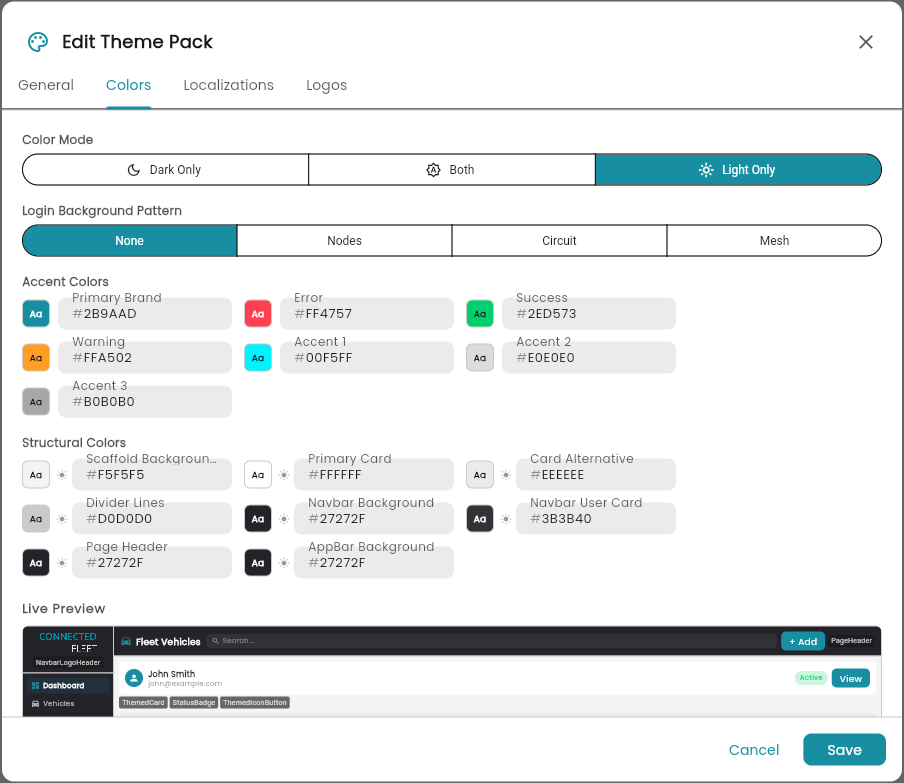
Connected Fleet can be delivered under your own identity. Colours, logos and wording are set in a theme pack, with a live preview showing the result on real components before anything is saved.
Accent palette: primary brand, error, success, warning and three further accents
Structural colours: scaffold background, cards, divider lines, navbar, page header and app bar
Colour mode fixed to light, fixed to dark, or both, to match how your people work
Login background pattern: none, nodes, circuit or mesh
Your logos in place of ours, including the navbar lockup
Localisations tab for wording, so labels match your operation's vocabulary
Live preview of nav, cards, badges and buttons as each value is changed
Edit Theme Pack · Colours and live preview
21 —IN-APP HELP
A guide on every page
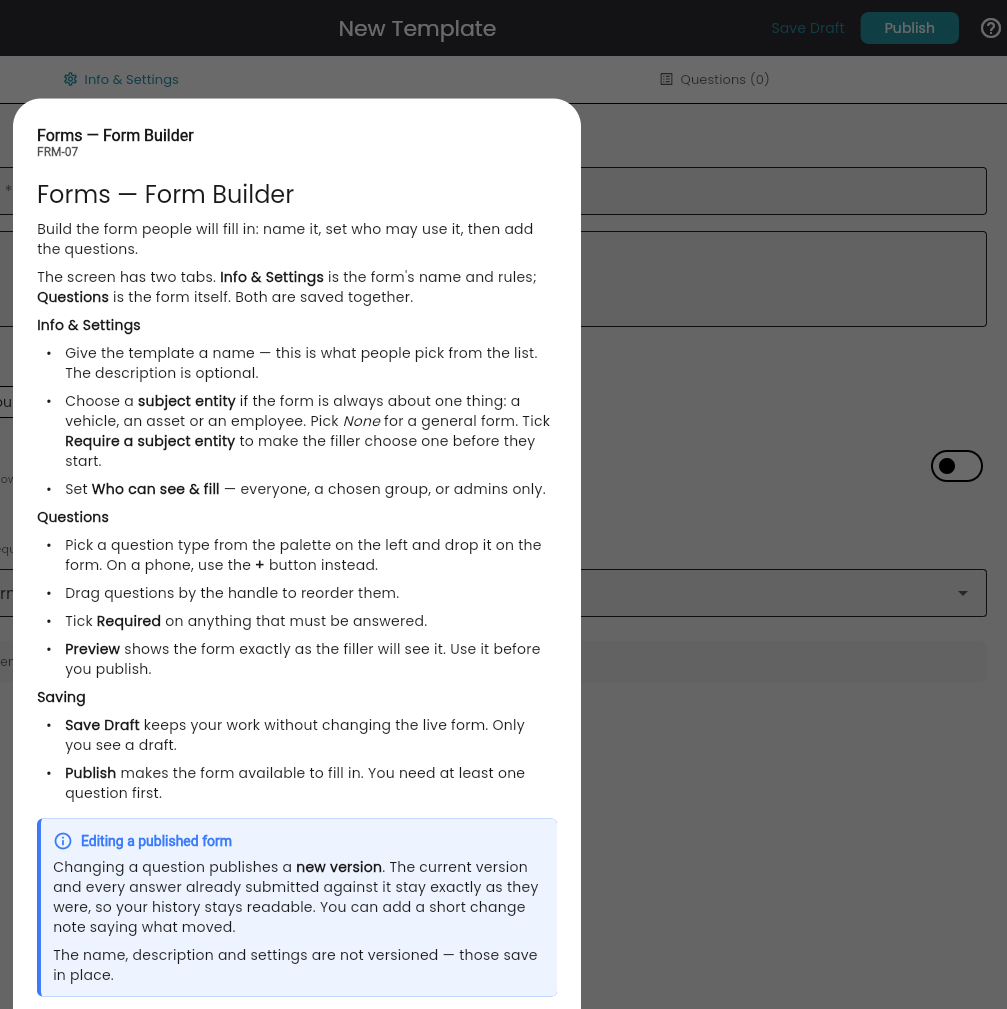
Every screen carries its own documentation, opened from the help icon in the corner. It explains what the screen is for, what each tab and setting does, and what the buttons that change things will actually change.
Help panel on every screen, one click from wherever the person is standing
Written for the person using the screen, in plain language, not as developer reference
Consequences spelled out, such as what publishing a change does to answers already submitted
Callouts for the things that catch people out
Screen name and ID in the panel header, matching the stamp at the foot of the page
FRM-07 · In-app guide, form builder
NEXT STEP
See it on your fleet
We deploy Connected Fleet on your tenant and configure the data points your operation runs on. Telematics devices are supplied by IO Systems on order, and existing hardware can be brought across. Book a walkthrough with the engineering team.